
Uploading Data To PISTIS
General overview
Data upload to a PISTIS Factory is handled through the Data Check‑in component. This component is mainly managed via the Job Configurator, except for the stream upload. The Job Configurator panel allows users to create automated jobs that perform predefined data management actions. The Data Check‑in component supports multiple data ingestion methods:
- Batch File Upload: Upload data directly from files.
- API Upload: Ingest data through external services using APIs.
- FTP Upload: Retrieve data from FTP servers.
The API upload and the FTP file upload functionalities support one‑time or periodical uploads, through a scheduler that instructs the platform to fetch data in selected intervals, depending on the user’s requirements.
In addition to these options, PISTIS also supports Streaming Upload, which enables continuous ingestion of data from real‑time data streams. Unlike the other upload methods, Streaming Upload is accessed through a dedicated menu and operates independently of the Job Configurator.
Creating Data Pipelines with the Job Configurator
The Job Configurator allows users to design complete data pipelines by combining the first three upload methods (Batch File, API, and FTP) with additional steps such as data transformation and insight generation. Pipelines are created using a drag‑and‑drop interface:
- Select available services from the "Services Available" panel.
- Drag and drop them into the "Workflow Representation" area to define the execution flow.
- Once the pipeline is configured, click the Run Workflow button located at the bottom of the page.
After execution starts, the system returns a workflow ID.
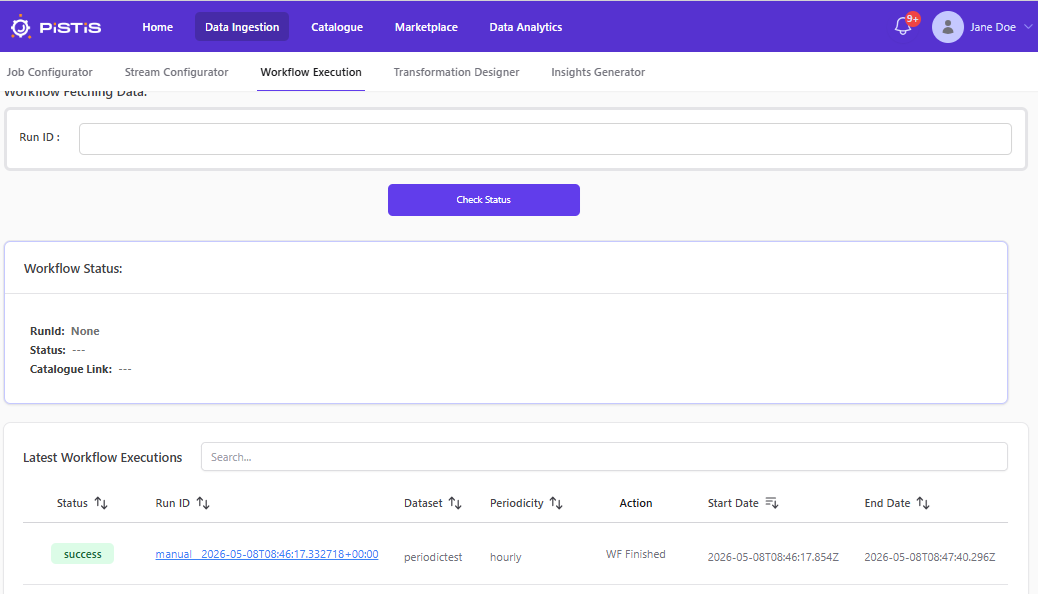
Note: Workflow execution may take several seconds. The workflow ID can be used to monitor progress and check execution status from the Workflow Execution menu.
More detailed explanations of each upload option and configuration step are provided in the following sections.
Uploading a Dataset from a file
The user is able to upload a dataset to Factory Data Catalogue by dragging & dropping the "Data Check-in:uploadFile" building block from the left ("Services Available" panel) to the righ-hand side of the window ("Workflow Representation" panel). The user must fill-in the required dataset info: dataset to upload, dataset name, description, category and keywords. The user may also decide if the dataset should be uploaded encrypted or not.
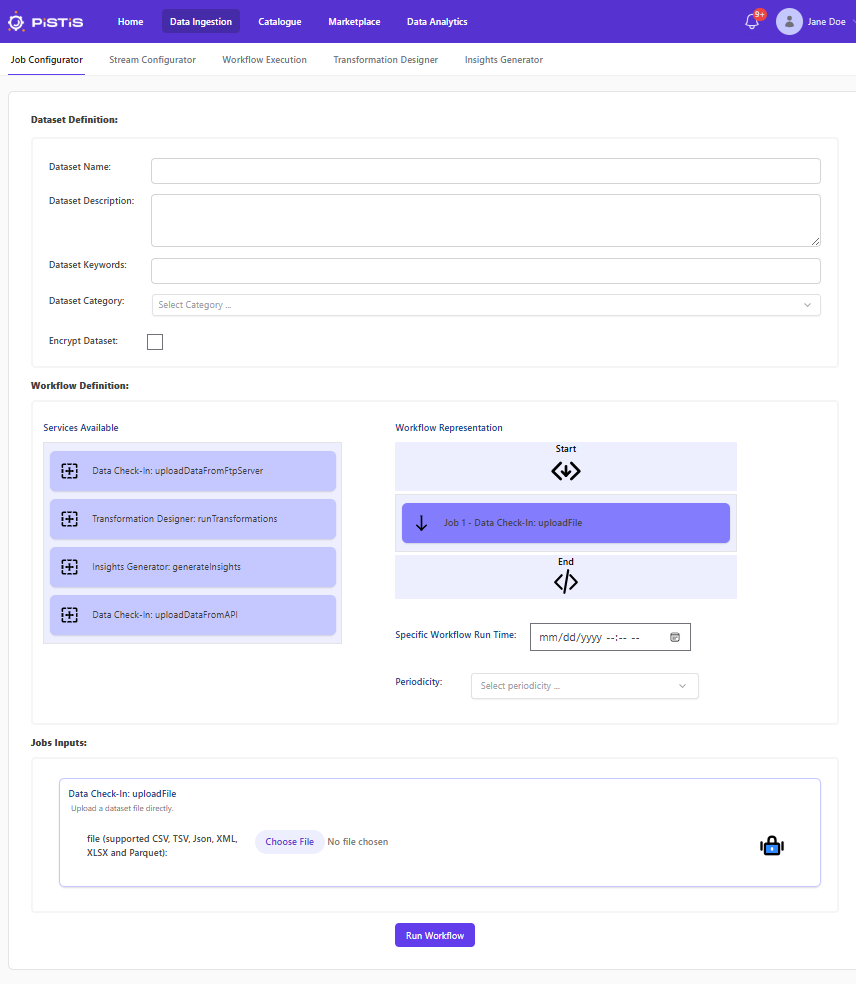
As mentioned in the general procedure, once submitted the system returns a workflow ID. The upload may take a few minutes, depending on the size and nature of the dataset. The user may wait or consult the status of the job using the workflow ID in the "Workflow Execution" menu option.
Uploading a Dataset from an API
Using the previously explained drag&drop functionality, the user is able to upload data coming from web APIs (e.g., REST service). This is dome by selecting the "Data Check-in:uploadDataFromAPI" and filling in the appropriate information to access the data. The information required is shown in the following screenshot:
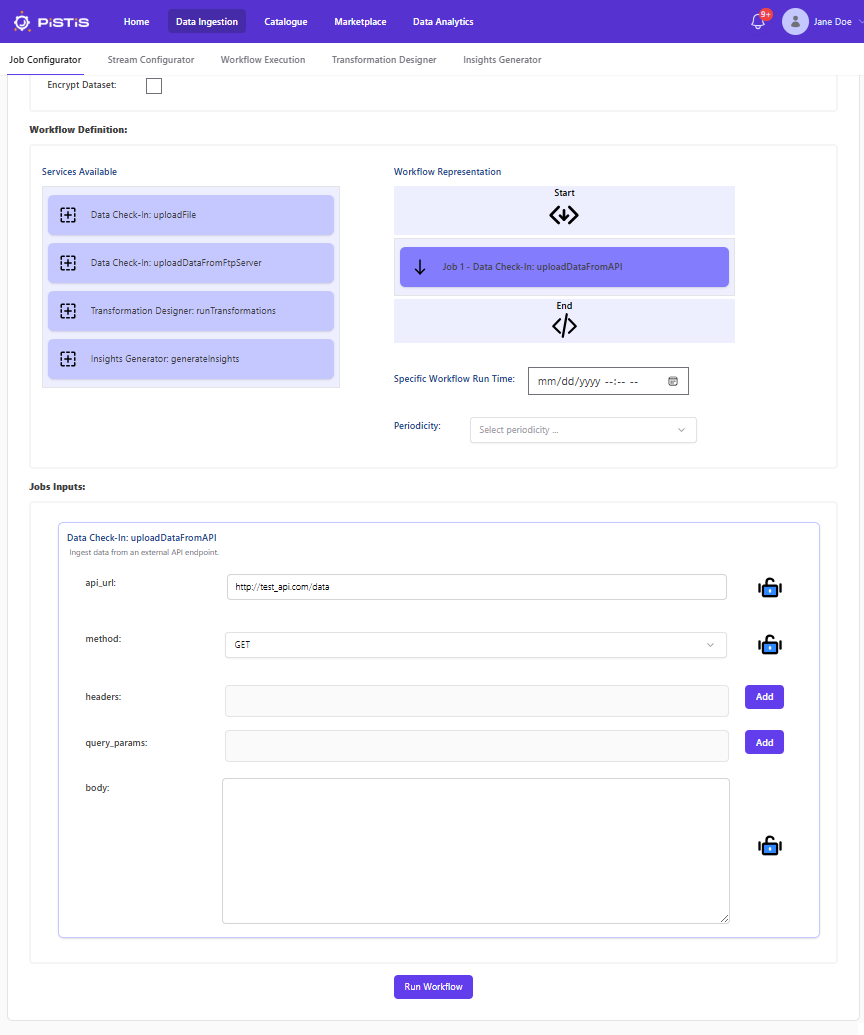
Note that the upload from API can run once or periodically. If the user select a periodicity (hourly, daily or monthly) and the specific time to start the job.
Uploading a Dataset from FTP
As in the previous case, the user may upload data coming from FTP. This is done by selecting the "Data Check-in:uploadDataFromFTPServer" and filling in the appropriate information to access the data. The information required is shown in the following screenshot:
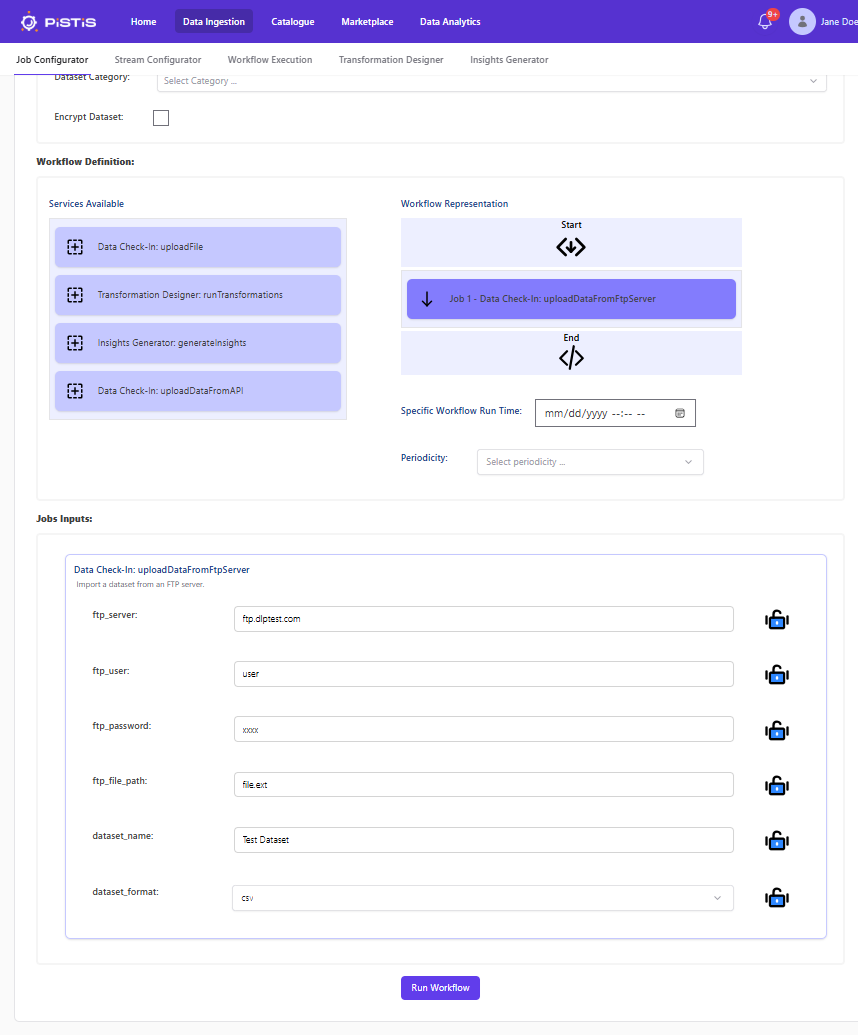
As in the case of upload from API, the FTP upload may run once or periodically. If the user select a periodicity (hourly, daily or monthly) and the specific time to start the job.
Performing Transformations over the Data
Using the job configurator panel, the user is able to perform various transformations over the data based on pre-defined transformations.
The system provides a Data Transformation Designer panel as a playground to design and test transformations over the dataset locally. The Transformation Designer provides written information in the page about its usage. If the user plans to run some data transformation techniques, before uploading the file users should define first the transformation in the Transformation Designer.
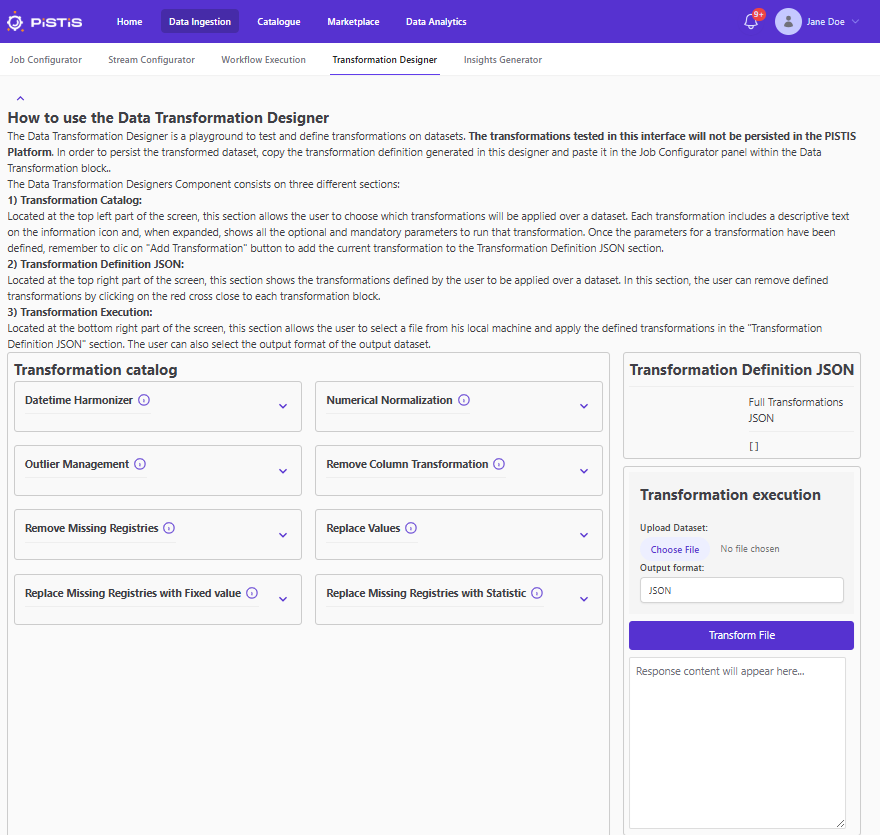
Once the transformation is tested in the Transformation Designer, the user should copy the rules to the Job configuration panel. To do so, drag & drop both the Data Check-in and the Data Transformation blocks to the right, select the file to upload and copy the transformation rules into the Transformation box:

Generating insights over the Data
The user may want to inspect the dataset by generating insights. In order to do that, they may use directly the "Insight Generator" menu option or create a pipeline with the insights generator in the Job Configurator option, combining the "Data Check-in:uploadFile" with the "generateInsights" building blocks (note that this option is not available for encrypted datasets). Either way, the system generates an insights report. The following screenshot shows the Insights Generator at work within the Job Configurator panel:
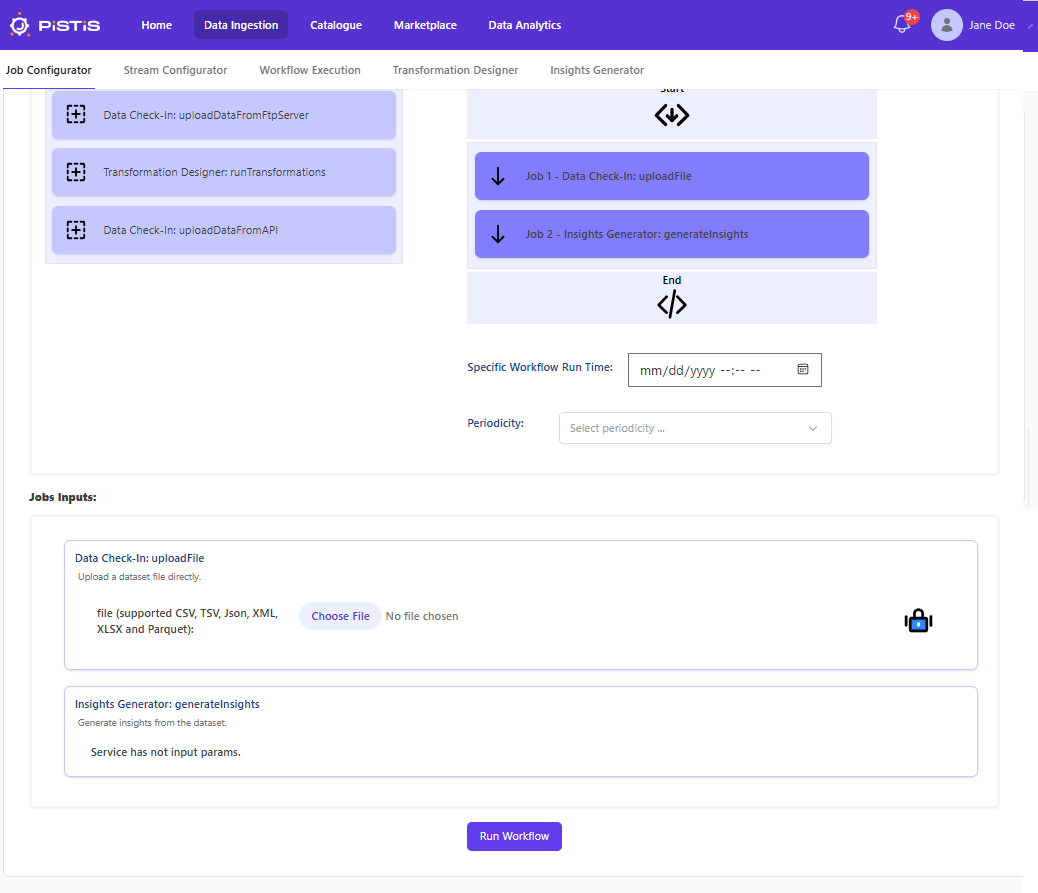
Once submitted, the job will upload the file and a set of default insights.
Dataset available in Factory Catalogue
After the completion of the jobs defined above, the ingested dataset is featured in the Data Catalogue of the Factory infrastructure of the user.