
Usage Analytics
This section introduces the Usage Analytics, a function that enables users to create customisable questionnaires to gather valuable feedback from specific audiences, capturing the underlying intentions of data owners and users regarding the datasets they own or are interested in, respectively.
Questionnaires
Here you can view, activate, or edit existing questionnaires, as well as create new ones.
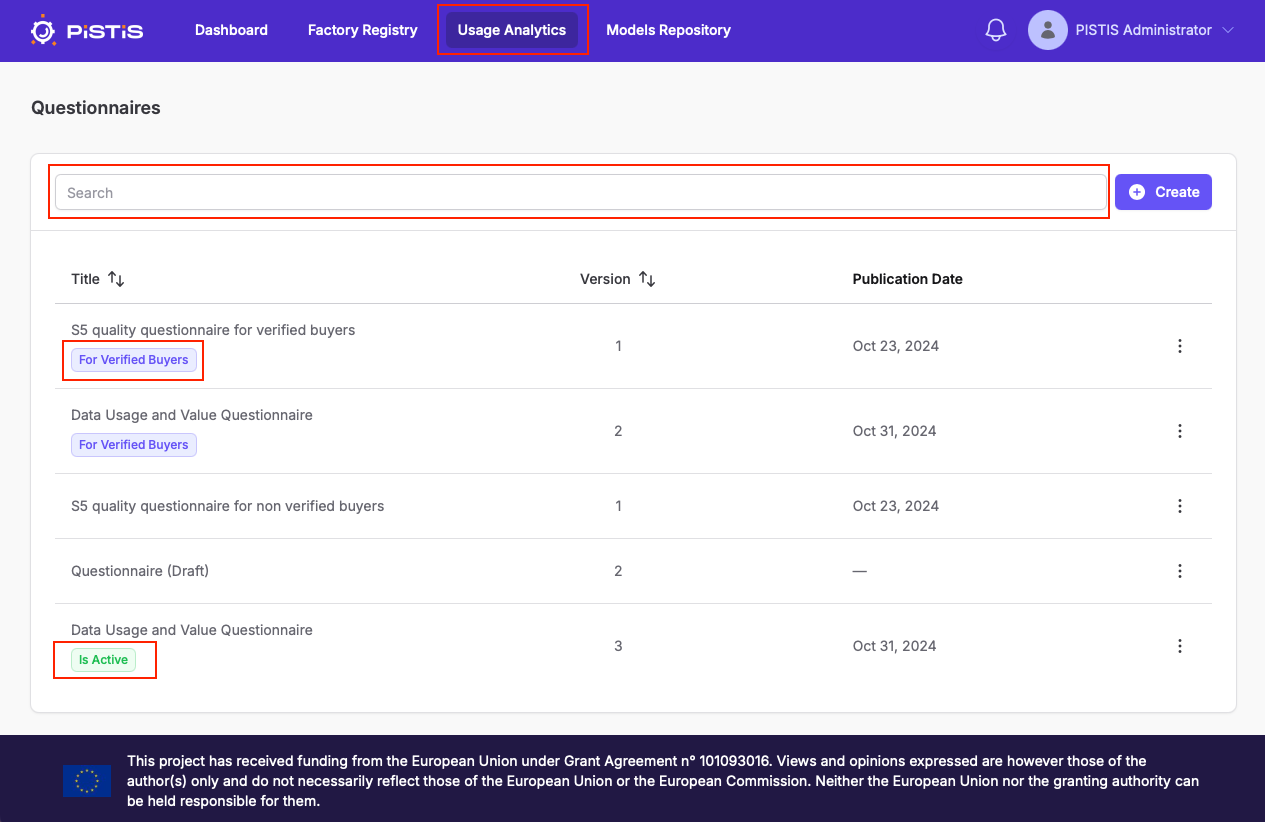
- A list of all questionnaires is displayed, showing details such as Title, Version, and Publication Date.
- You can use the search bar to filter the list of questionnaires by title.
- Questionnaires can include tags such as For Verified Buyers and Is Active, which indicate the audience and activation status of the questionnaire.
- By clicking on the three-dot menu (vertically aligned) ) next to each questionnaire, you can:
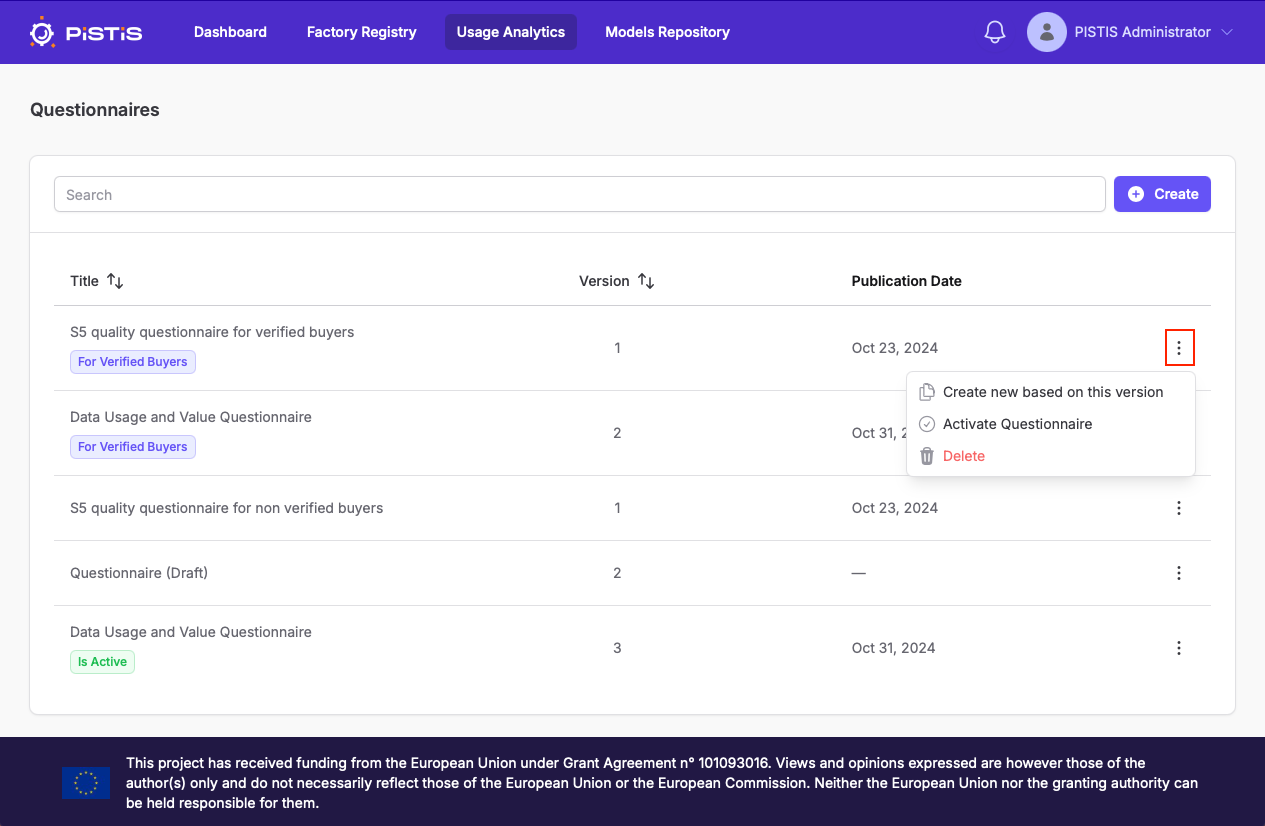
- Create new based on this version: You can duplicate the questionnaire to create a new version.
- Activate Questionnaire: You can publish the questionnaire to make it available for users. Upon its activation, it will be visible on the Questionnaires list.
- Delete: You can, permanently remove the questionnaire. This action deletes the given version and all its related questions.
Create a New Questionnaire
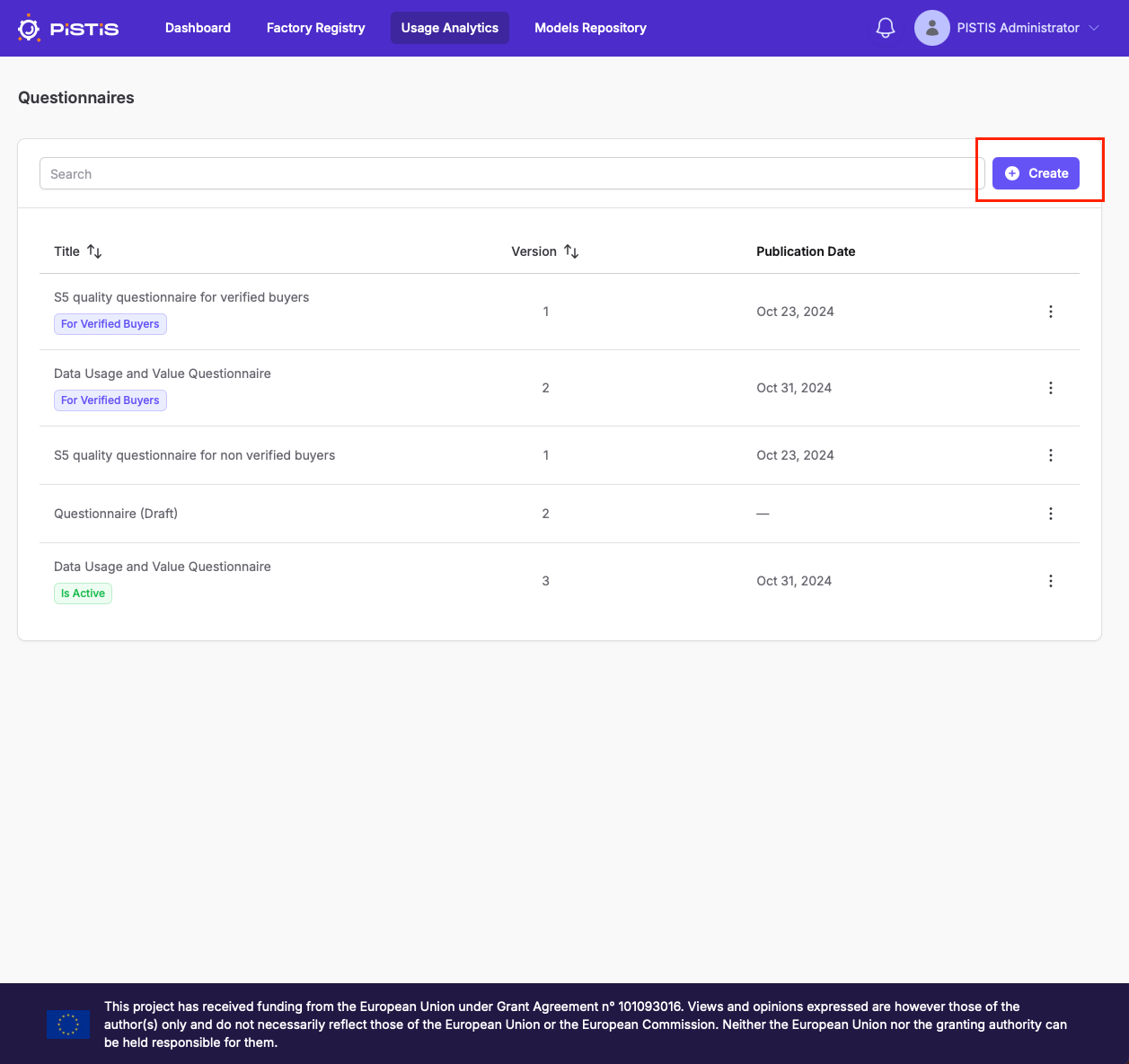
You can create a new questionnaire by clicking on the “Create” button and following these steps:
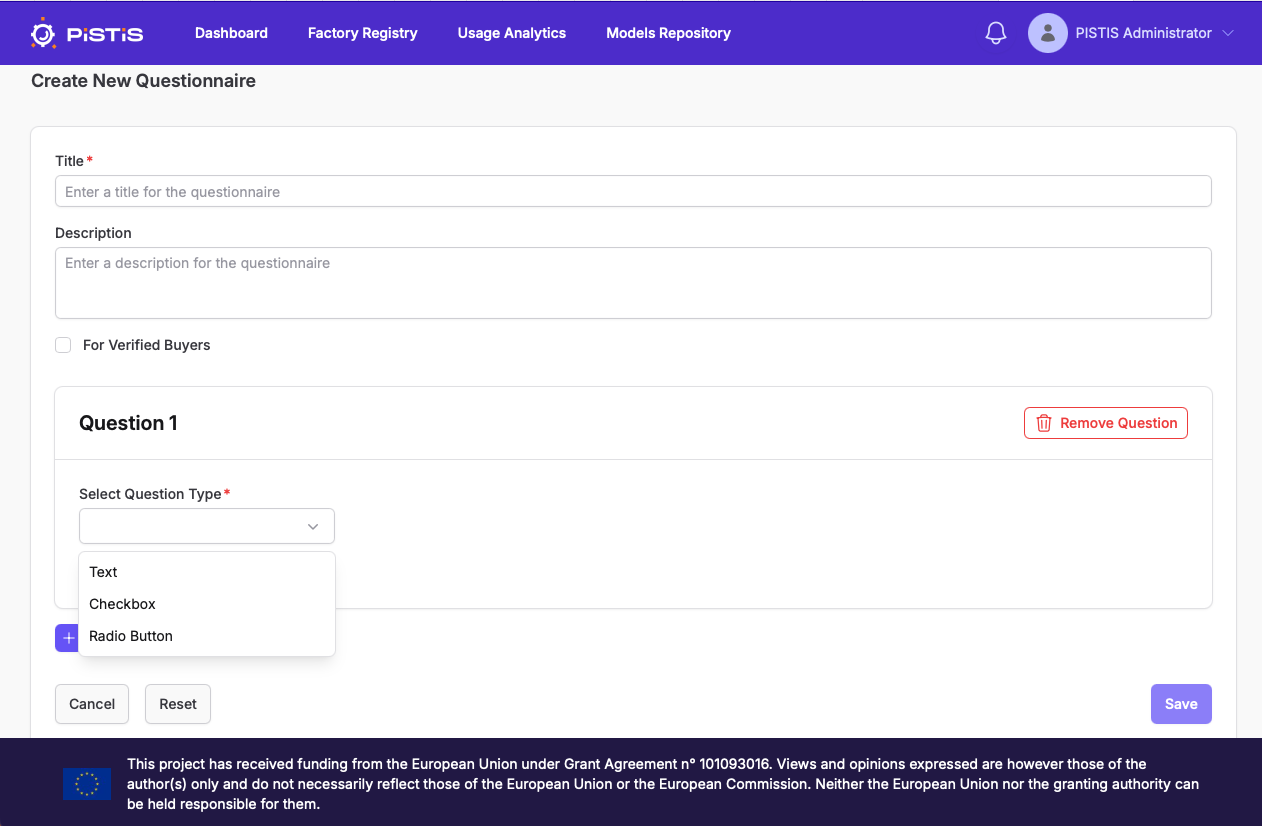
- Initially, you shall enter a descriptive Title and an optional Description for the questionnaire.
- You can enable the checkbox to limit the questionnaire to Verified Buyers.
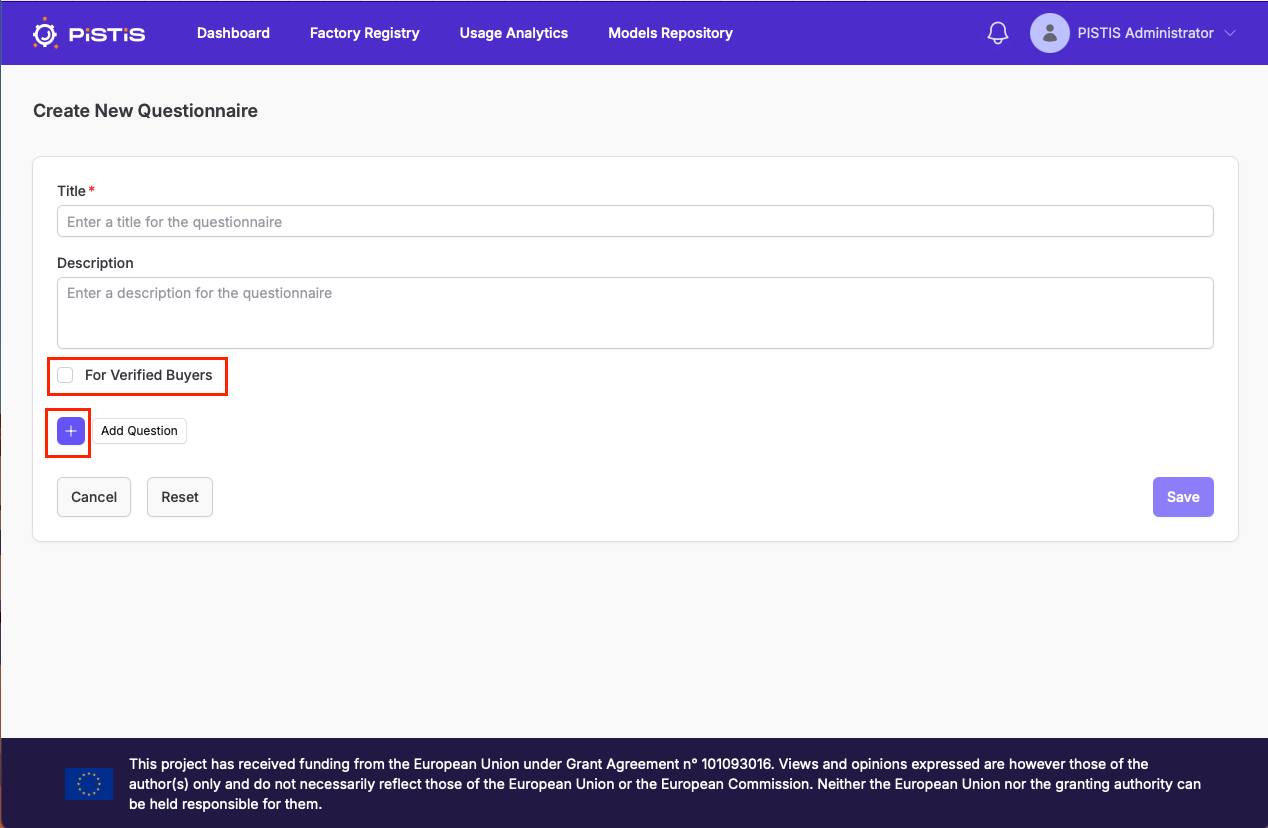
- Add Questions: You can click the Add Question button to include a new question.
- For each question:
- Select Question Type: You can choose from available types such as Text, Checkbox, and Radio Button.
- For questions with the Text type, you shall add a title that reflects the content of the question.
- For questions with the Checkbox type, you shall add a title and select at least 2 options for answers.
You can either add a Custom Option (by clicking on the circular button with a plus sign), where you shall provide the text; or Add pre-configured option by clicking on the respective button and selecting among two options for the answers: Rating Option (1-5) and Rating Scale (Extremely Poor to Excellent).
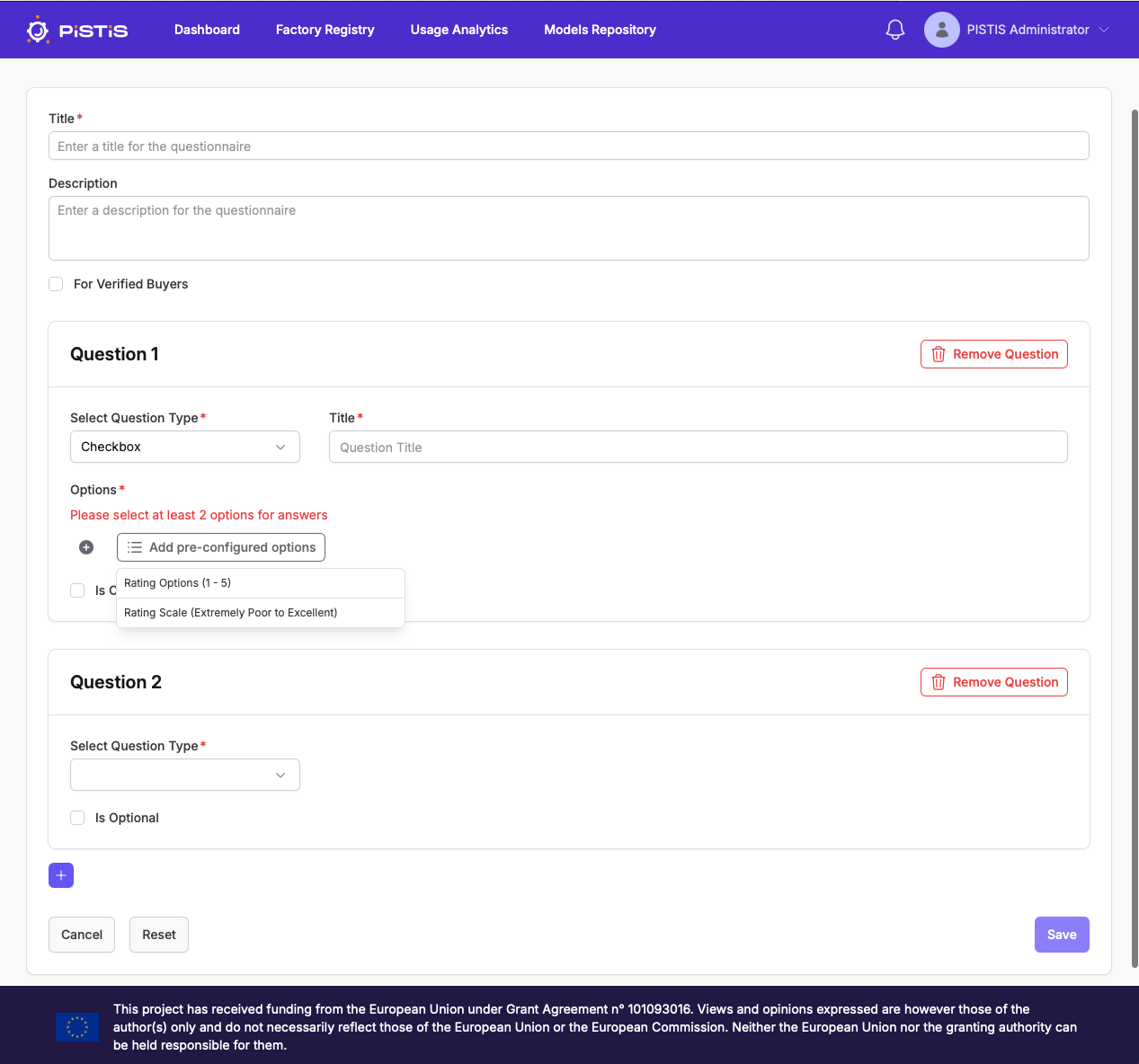
For questions with the Radio Button type, the same steps as the “Checkbox” type apply.
- You can also make any question optional by enabling the Is Optional checkbox.
- To delete an option, click the trash icon next to it.
- To delete a question, click the Remove Question button.
- Once the questionnaire is complete, click on the Save button to store it.
At any point you can :
- Use the Reset button to clear all fields and start over if necessary.
- Use the Cancel button to discard the new questionnaire and return to the questionnaires list.