Data Publication Tool
In this section you will design the monetization plan for your data asset and set the access policy for it before publishing.
Step 1: Select Dataset / Details
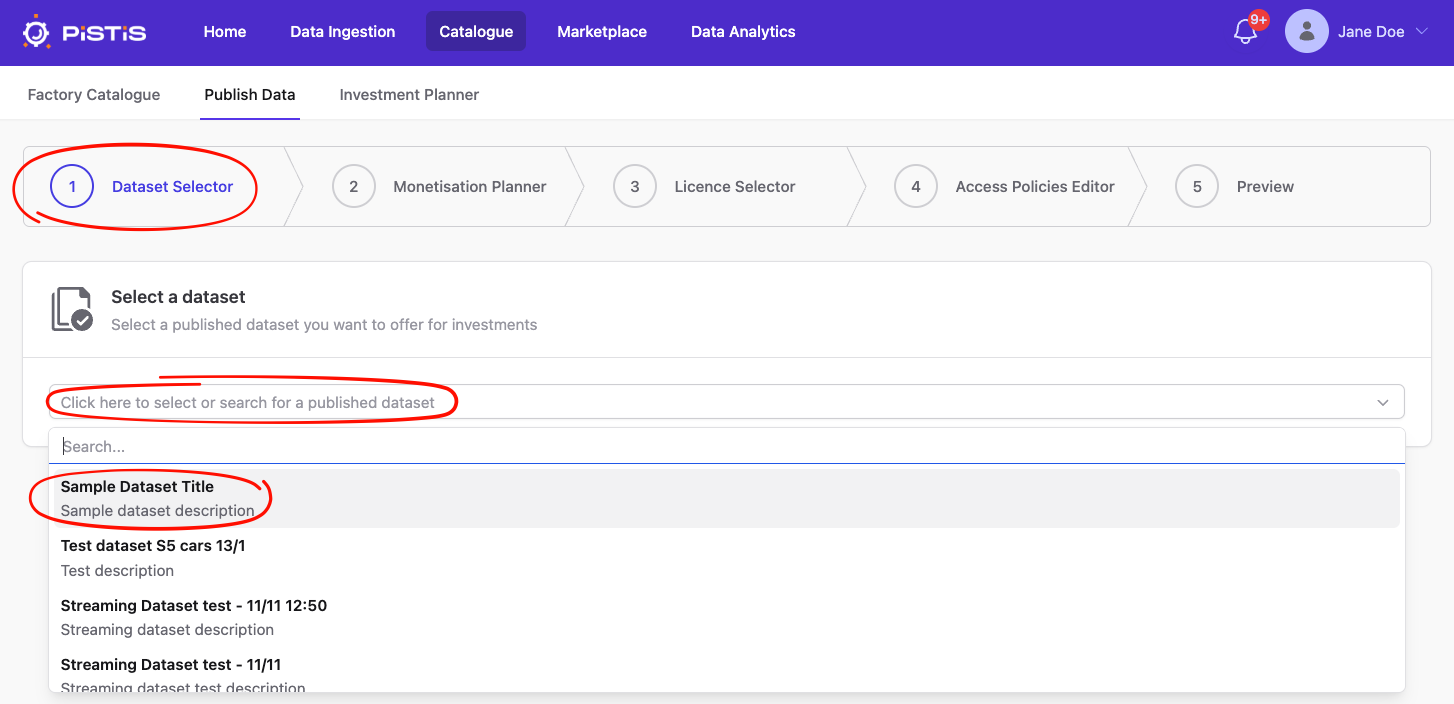
In this step you will select one of the available datasets by clicking on the input / dropdown combo and either searching for a dataset's title or description, or simply scrolling to see the available options and clicking on the one you want.
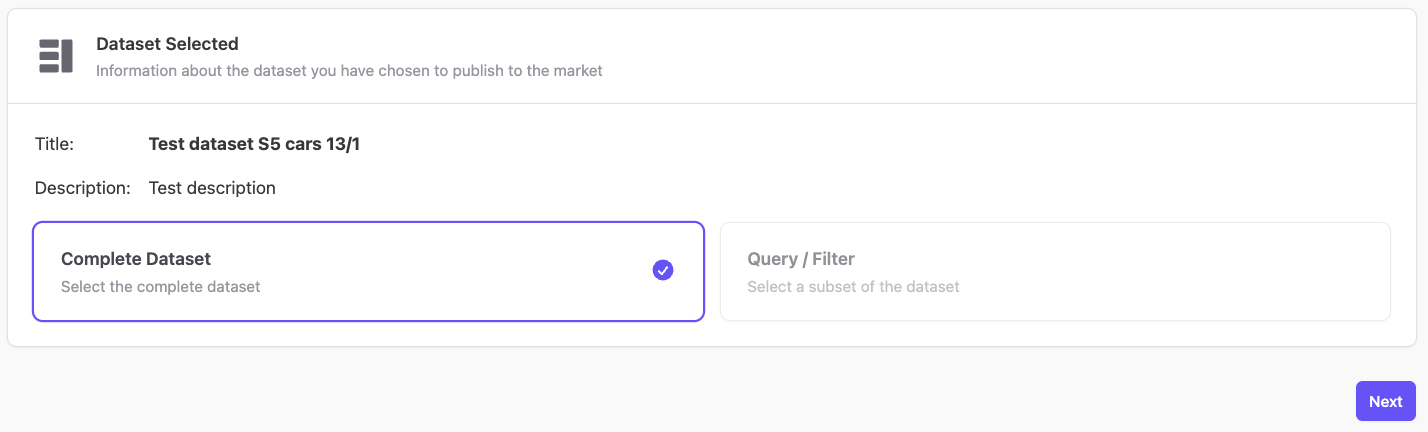
After you make your selection, you will see the details of your selected dataset, along with a choice to monetize the complete dataset or to select a query / filter of it. For the time being only the former option is available.Press the next button to move on to the monetisation planner.
Step 2: Monetisation Planner
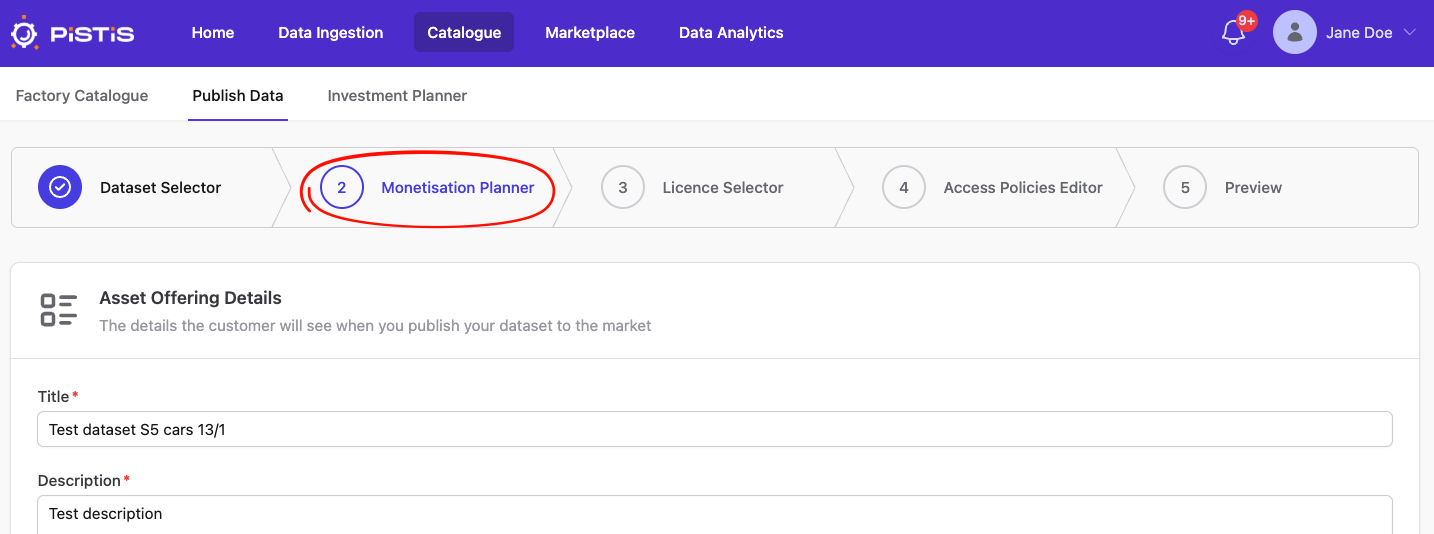
This section introduces the Monetisation Planner, a fill-in form that data providers are required to complete before publishing their data assets to the PISTIS Marketplace. The process ensures your dataset is properly prepared for sharing or trading, while enabling potential buyers customers (data consumers) to access and utilise it effectively. As shown below, this form consists of the following sections, explained below:
- Asset Offering Details: Define the information potential buyers (data consumers) will see about your dataset.
- Monetisation Method: Configure how you want to monetise your dataset.
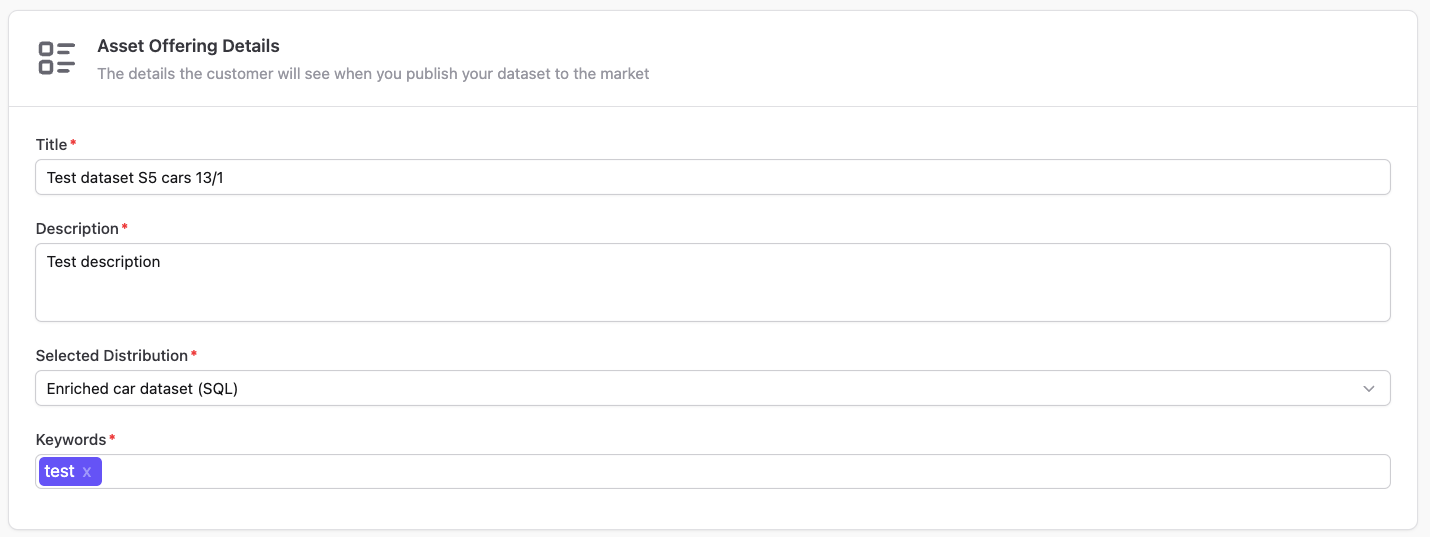
Asset Offering Details
Here you shall define the information that potential buyers (data consumers) will see when your dataset is published on the marketplace. This includes providing a descriptive title and detailed explanation of your dataset, highlighting its relevance; specify the preferred distribution type; as well as adding relevant keywords in order to make your dataset more discoverable.
Monetisation Method
This section allows you to select the monetization method for the asset and the details associated with it, towards customising how you want to monetise your dataset. Initially, you’ll choose your preferred monetisation option, which includes: a) Selling the dataset for a single, fixed price (one-Off Sale), b) Offering the dataset as a recurring service (Subscription), c) Tokenising the dataset as a unique asset (NFT).
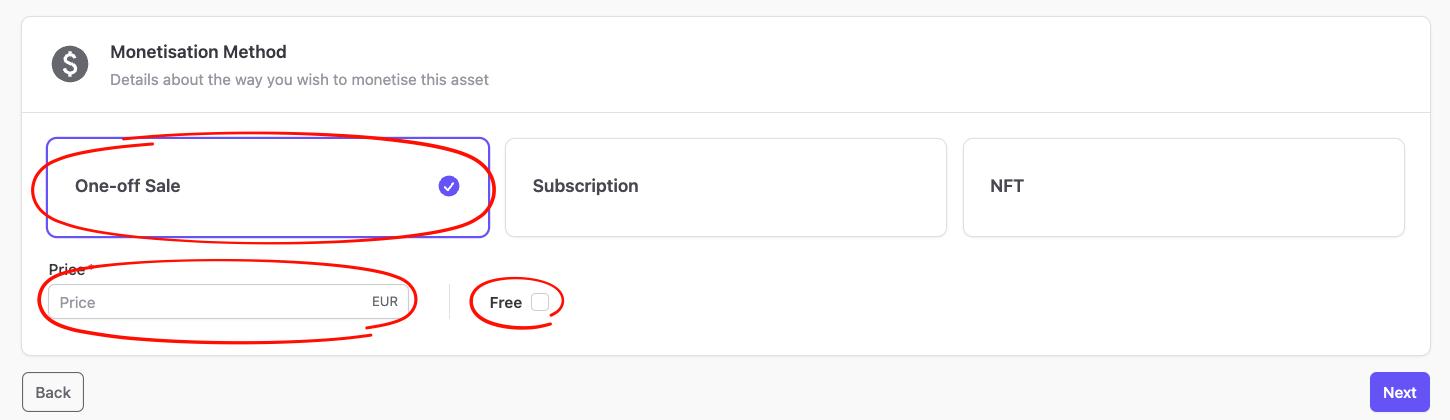
One-Off Sale
If you select "One-off Sale", you can fill in the price for the sale of your dataset. If you select the "Free" checkbox next to the price, your price automatically gets set to 0.
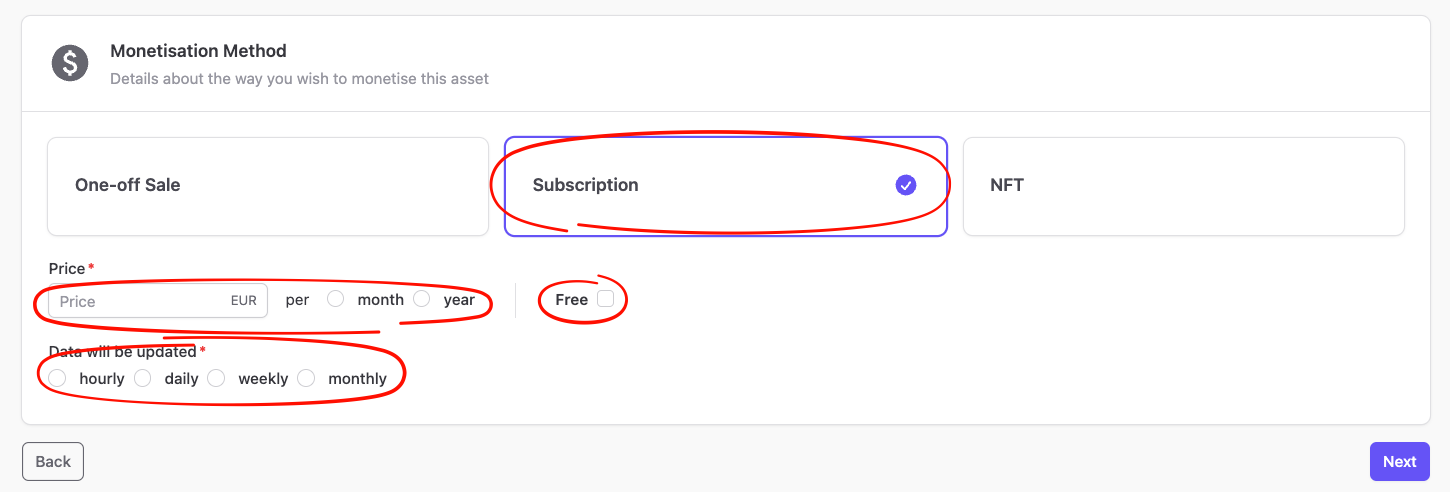
Subscription
If you select "Subscription", you can select the subscription frequency (monthly month or annual year), fill in the subscription price, and set how frequently your data will be updated. If you select the "Free" checkbox next to the price, your price automatically gets set to 0.
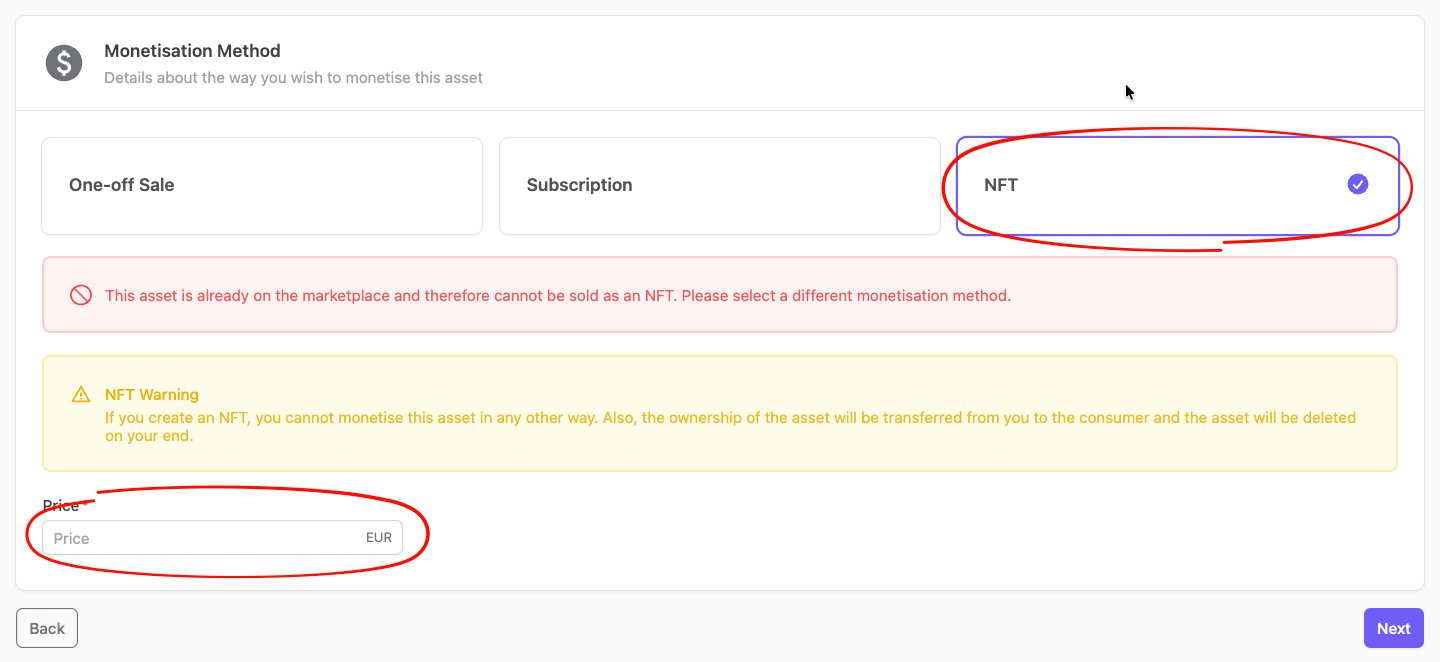
NFT
If you select "NFT", you can select the price for your NFT offering. You cannot publish your dataset as an NFT if it has already been published as a one-off sale or as a subscription on the marketplace. Also, you cannot monetize your dataset in any other way after it has already been offered as an NFT.
Press the "Next" button to move on to move on to the Licence Selector.
Step 3: Licence Selector
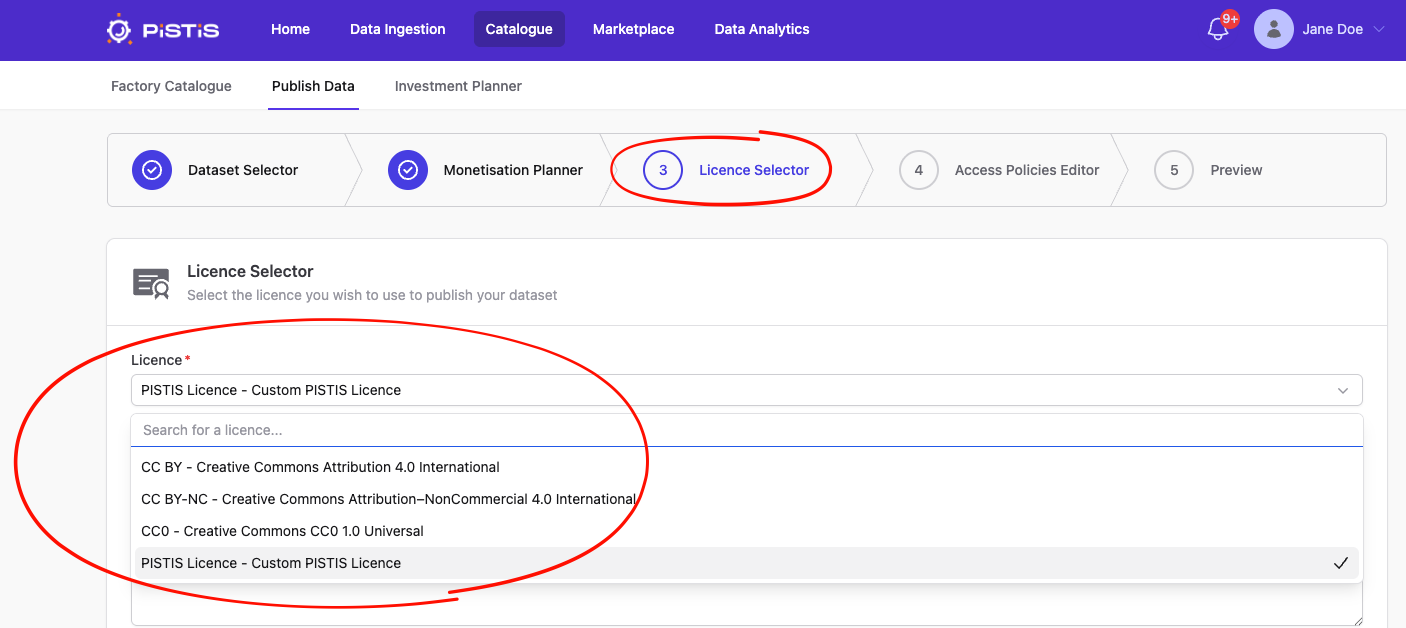
In this section you will use a licence for your dataset that is set to be published on the marketplace. If your offering is paid, you can only select the custom PISTIS licence, the details of which you will fill in in the displayed form. If your offering is an NFT, there is only one single NFT licence available. If your offering is free, you can select the custom PISTIS licence of select from three free-use CC licences (CC BY, CC BY-NC and CC0).
Custom PISTIS Licence Form
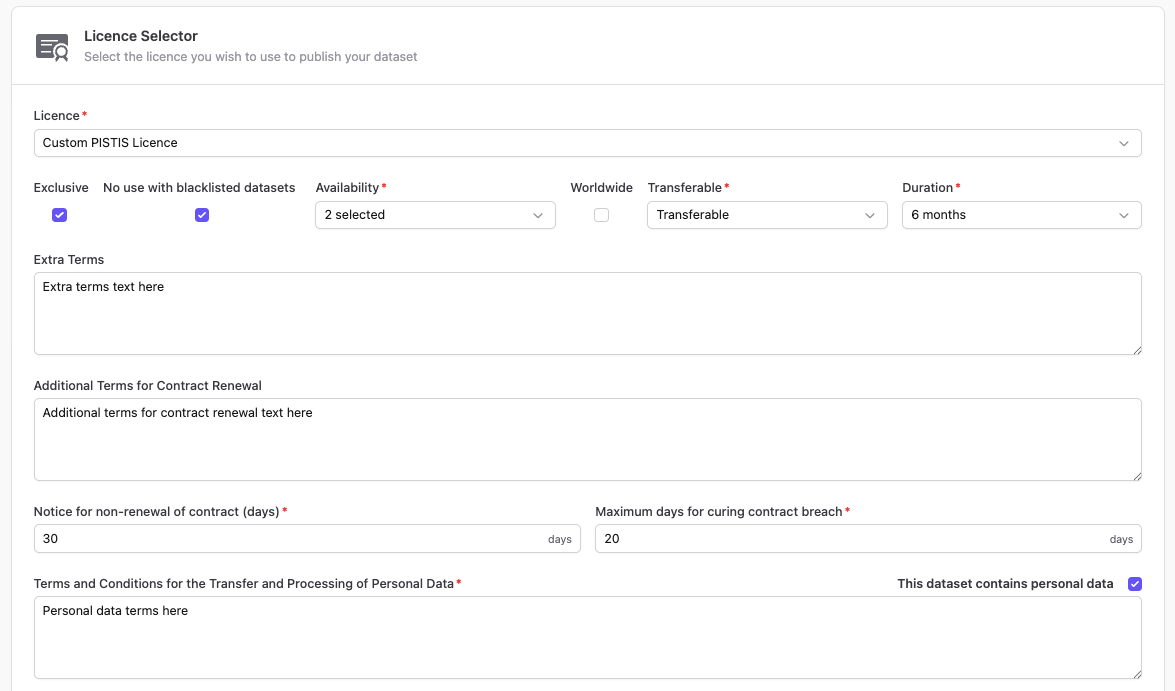
If you have selected the Custom PISTIS License, you will need to fill in some details in the form pictured above.
- Exclusive: Whether your license is exclusive or not. By default this is unselected.
- No use with blacklisted datasets: Whether your offering can be used with blacklisted datasets or not. By default this is unselected.
- Availability: Search for and select one or more countries where your offering will be available.
- Worldwide: Sets no restrictions to the previous field and makes it available worldwide. By default this is unselected.
- Transferable: Whether your offering is transferable, non-transferable or sub-licensable.
- Number of times the dataset can be resold: If your offering is not a subscription, this field determines how many times your dataset can be resold by the buyer.
- Duration: How long your license will be valid for. Choose from a selection of months to a year, or pick perpetual (revocable or not).
- Extra terms: Extra terms for your licence go here. Optional.
- Additional Terms for Contract Renewal: Additional terms for contract renewal go here. Optional.
- Notice for non-renewal of contract (days): How many days the buyer has to renew their contract.
- Maximum days for curing contract breach: How many days the buyer can have the opportunity to cure a contract breach.
- This dataset contains personal data: Select whether your dataset contains personal data of any kind. By default this is unselected.
- Terms and Conditions for the Transfer and Processing of Personal Data: If you select the above checkbox, these terms are mandatory to fill in.
Licence Details
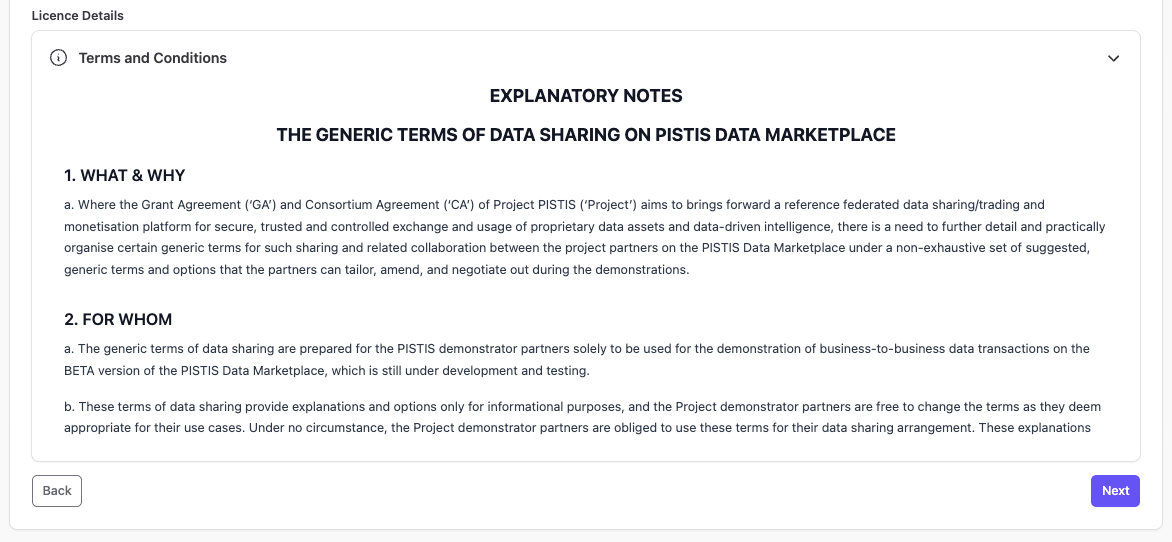
As you fill in the details of the custom PISTIS Licence, this licence document is being dynamically populated with your choices/input. You can scroll through it to see the full legal text.
Press the Next button to move on to the Access Policies Editor.
Step 4: Access Policies Editor
In this section you will be able to manage custom Access Policies for the asset in publication.
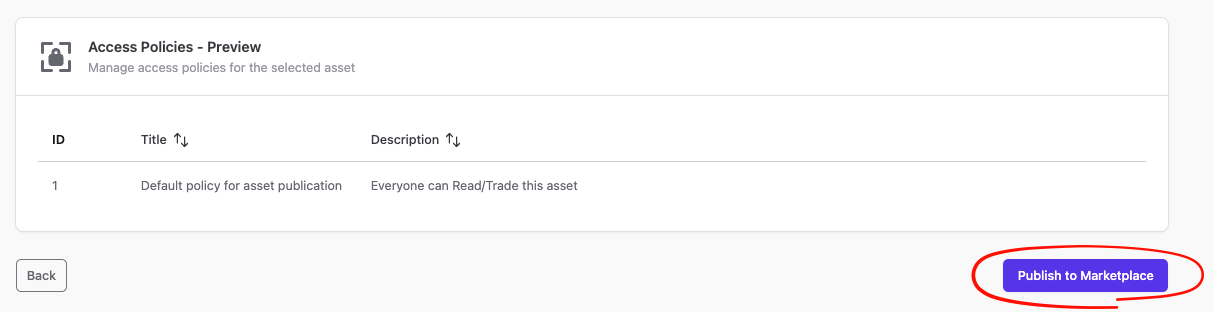
By default, each asset is published with a Default Access Policy which defined that Everyone can READ and TRADE the asset, as shown in the figure bellow.
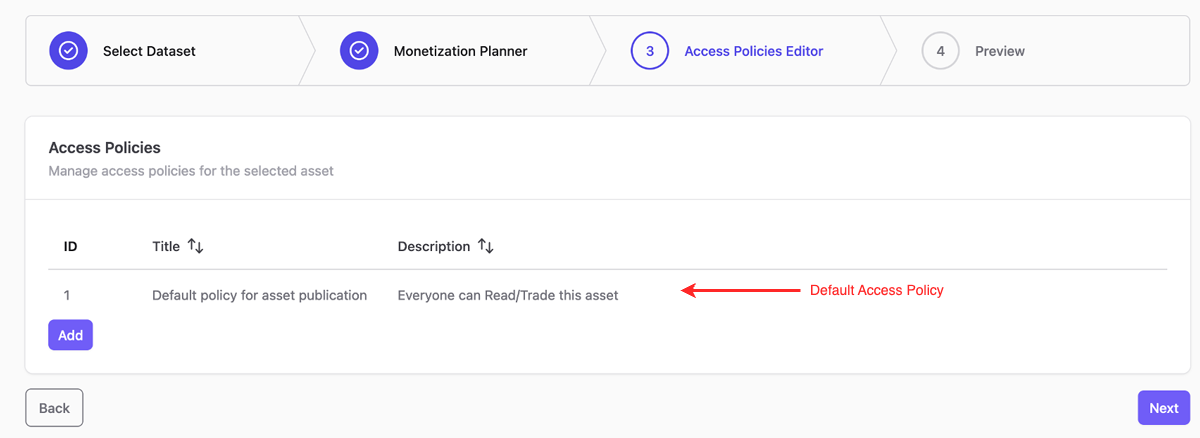
NOTE The Default Access Policy cannot be changed or removed.
Any custom added Access Policies will define Exclusion Rules in other words, cases where the Asset's READ or TRADE access has be prohibited.
Add custom Access Policies
By pressing Add button a prompt dialog appears, as shown below:
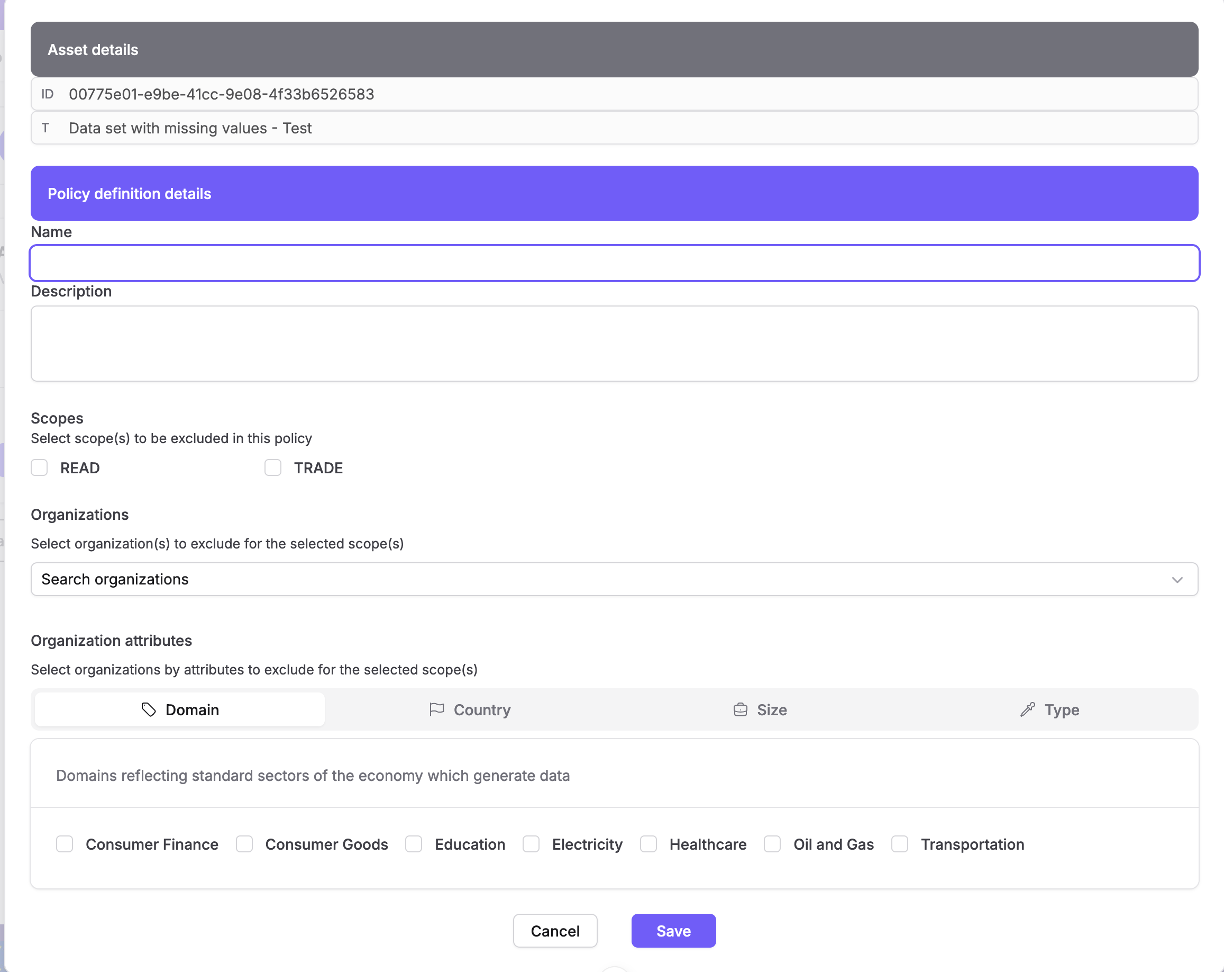
In the top of the dialog Asset ID and Title are displayed for convenience. User has to provide a Name and a Description for the Access Policy identification.
Right after, the actual scenario of the Policy has to be specified via selecting:
- Scopes that user would like NOT TO ALLOW for the asset publication
- Organizations that user would like to include in this exclusion policy. Organizations can be selected one by one with the type 'n' search field provided in the dialog. Alternatively, user is able to select Organizations by their attributes, namely: Domain, Country, Size and Type
After setting all the required options, button Save has to be pressed and the custom Access Policy has been added in the list, where the user is also able to Edit or Remove it.
Same procedure can be followed for creating more Access Policies, if desired, before proceeding with next step.
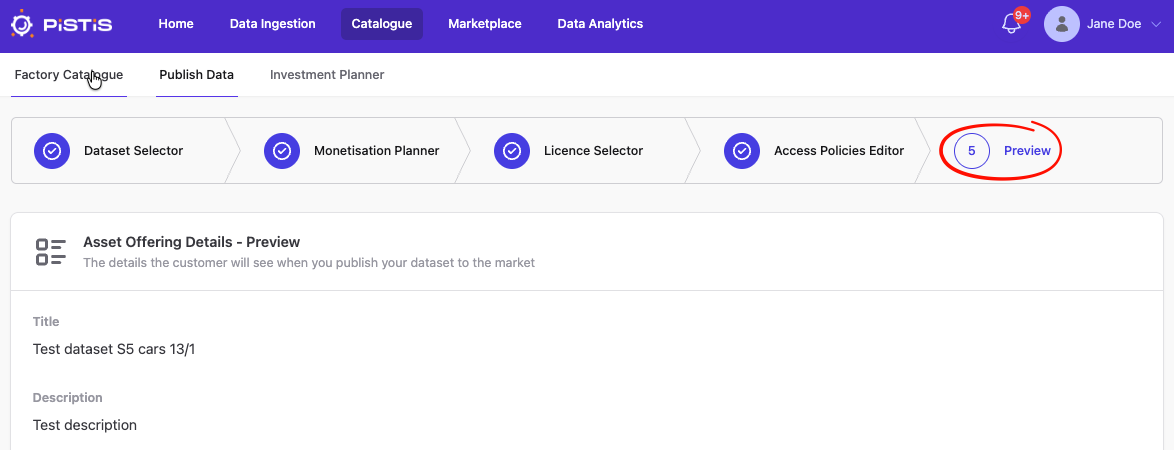
Step 5: Preview
In this section you will be able to preview the Asset Offering Details, the Monetisation Method and its details, the Licence Details, as well as its Access Policy (when implemented), before selecting the "Submit" button to publish the asset (or selecting "Back") to go back to the Access Policies Editor (Step 4).
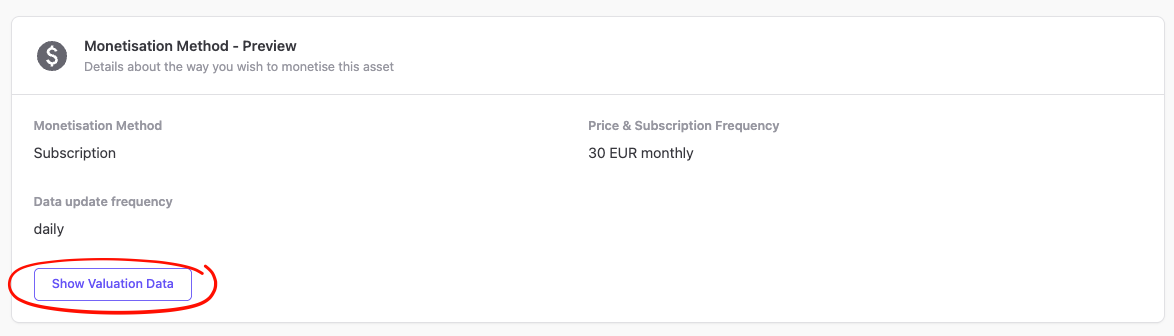
FAIR Data Valuation
If your offering isn't free and it isn't an NFT, you can click the "Show Valuation Data" button to get a valuation/grade of your dataset based on its merits.
When you reach the final section of the preview, you can click on "Publish To Marketplace" to publish your dataset. If the publication is successful, you will see a green success message and be taken to your dataset's marketplace page. If not, you will se a red error message.