
Data Enrichment
The Data Enrichment service is a PISTIS Factory component that enables users to convert a dataset into a SQL table by mapping columns from a raw dataset to properties defined in the PISTIS Data Model. Its interface displays both the raw dataset and the corresponding model properties that users can select for mapping. This service is accessible through the dataset details page in the Factory Catalogue UI. After the process is completed, a new SQL-format distribution of the dataset becomes available in the Factory Data Storage. The steps for using this service are described below.
Select a dataset to enrich
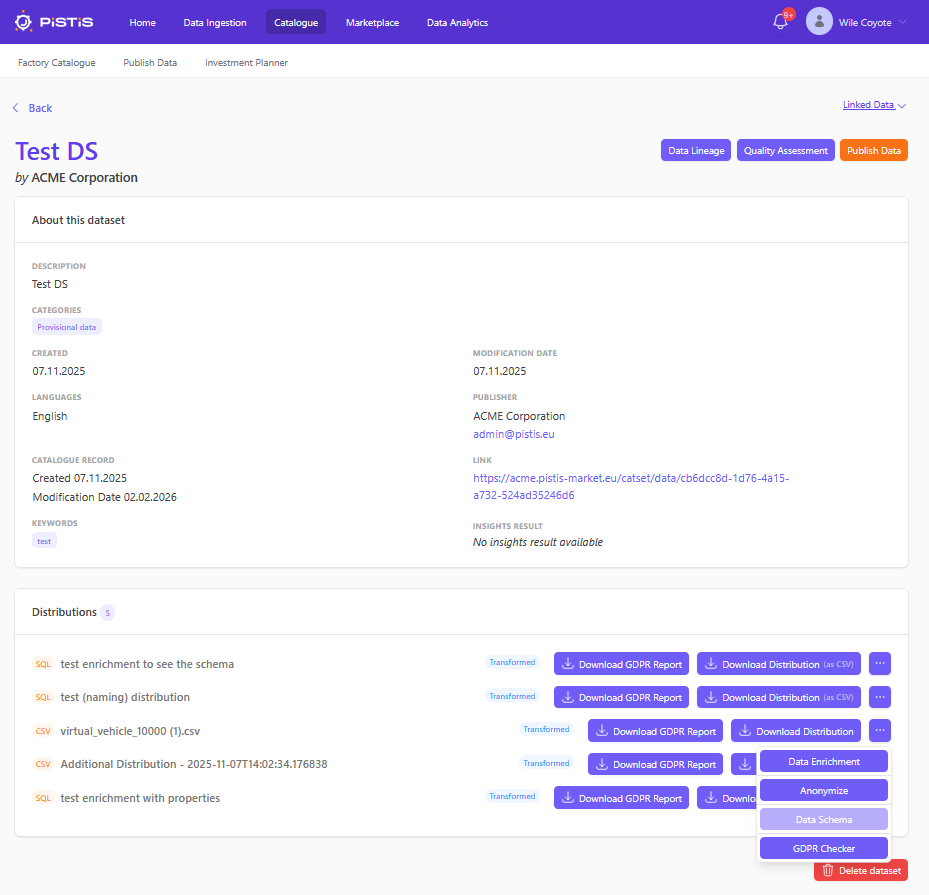
After a user uploads a dataset to the PISTIS Factory through the Data Ingestion process, a dataset entry is created in the Factory Data Catalogue with the required metadata. Distributions represent the actual stored versions of this dataset within the Factory Data Storage. Once a distribution is available, a Data Enrichment button appears in its drop-down menu. Selecting this option opens the enrichment UI, where the user can semantically enrich the dataset by mapping its columns to properties from the PISTIS Data Model.
Dataset view
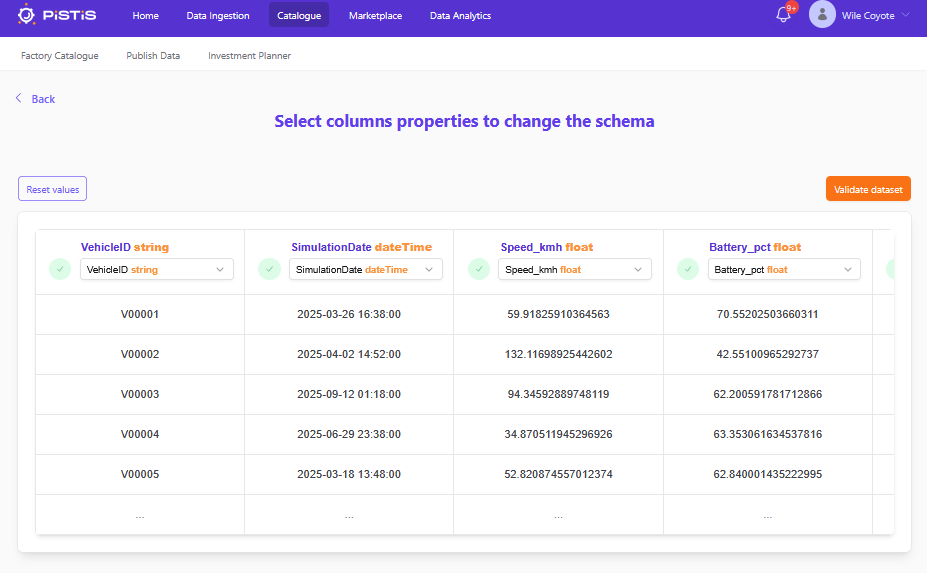
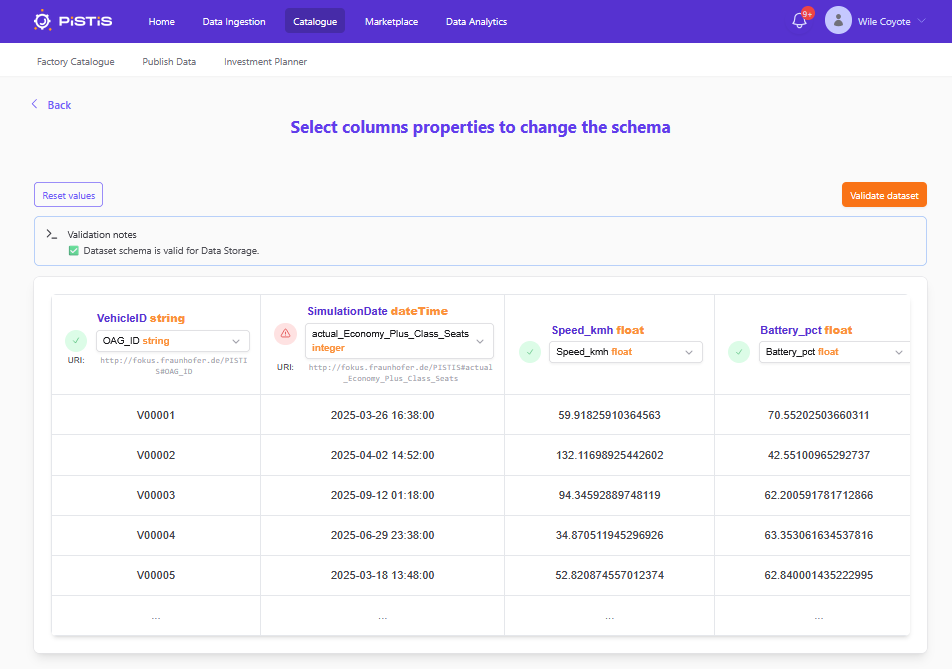
The enrichment UI displays the dataset along with its column names and the detected datatypes for each column based on an analysis of the first few rows. It also shows the datatype of the values in each row. If the dataset is not what the user expected to see, the Back button will take the user back to the dataset details page. The interface includes a Reset values button, which restores the original column names if the user wants to restart the mapping process. The Validate dataset button checks the current column names and data against PostgreSQL naming conventions and verifies whether the row data aligns with the detected or user-selected datatypes. When clicked, the system displays the validation results.
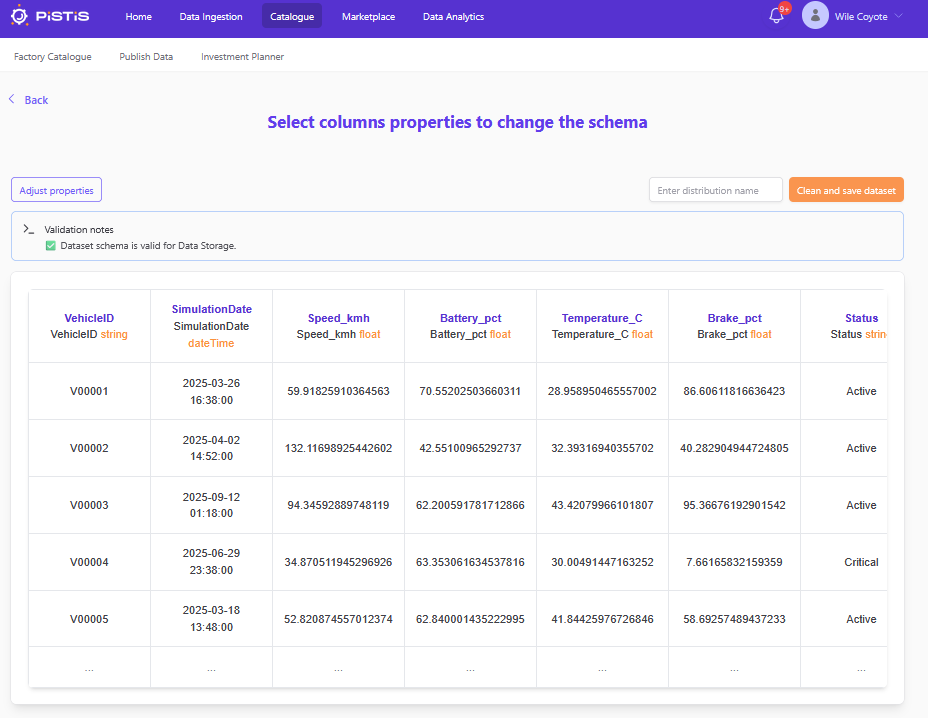
The results of the dataset validation are displayed above the dataset, showing any column or row level errors. These errors indicate whether column names violate PostgreSQL naming conventions or whether there are datatype mismatches within the rows. An Adjust properties button is provided, allowing the user to go to a new page where the dataset columns can be remapped to properties from the PISTIS Data Model.
Select the properties
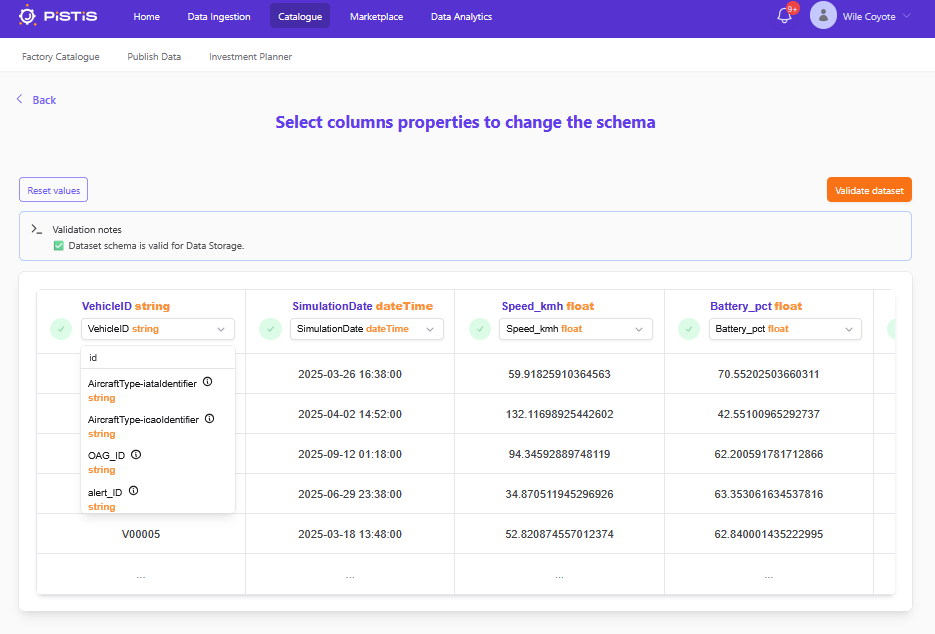
The user can now update column names by selecting properties from the PISTIS Data Model. They may choose to modify only the columns with validation errors or any other columns they wish to change. To change a column name, the user clicks on the column header to open a drop-down menu containing the list of available model properties. A live search bar is also provided, enabling users to quickly find properties by name or datatype. Each property includes an i icon that reveals its URIRef and information about the ontology it originates from, giving the user additional context about the property’s definition and source.
When a property is selected, the UI checks its datatype against the datatype detected in the dataset’s rows. A green check mark appears if the property is compatible; otherwise, a red indicator is shown. For example, if the dataset’s values are of type Integer and the user selects a property with a dateTime datatype, the red indicator will appear, and the enrichment process cannot proceed. All columns must display a green check mark before continuing.
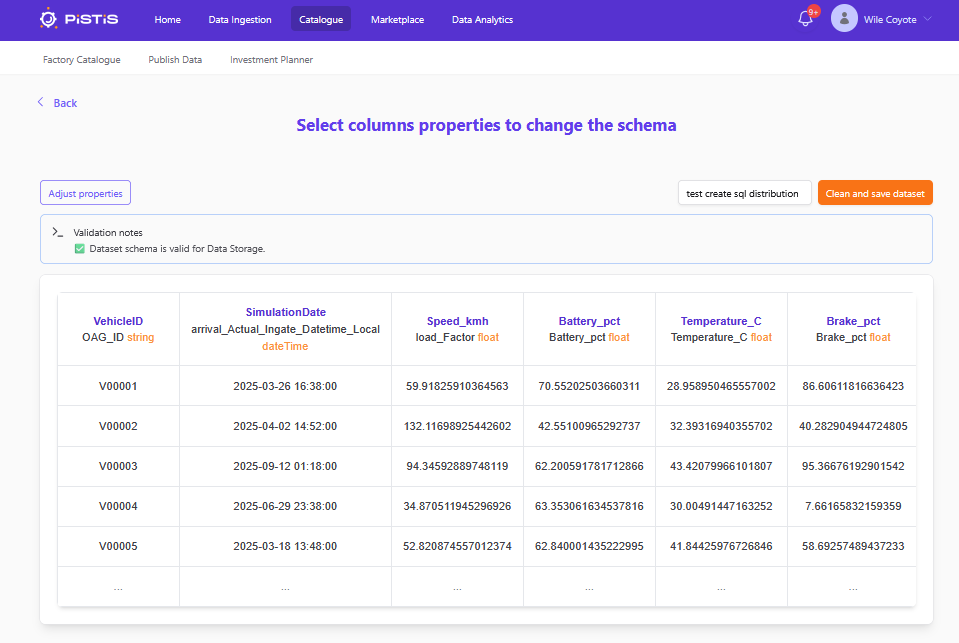
The interface also includes a field where the user can specify a name for the SQL distribution that will be created as a result of the enrichment process. After the column names have been correctly mapped, running Validate dataset again will confirm that the schema is suitable for storage, and at this stage providing a distribution name becomes mandatory. The Clean and save dataset button becomes available only when all columns have valid names, each selected property’s datatype is compatible with the data in the rows, and a distribution name has been entered. The green check marks beside the columns indicate datatype compatibility. Since the enriched dataset will be stored in PostgreSQL, duplicate column names are not allowed. In summary, the user must assign valid PISTIS Data Model properties to every column and ensure that the selected properties’ datatypes align with the detected datatypes of the dataset values.
Resulting distribution
The resulting distribution after this process will have all necessary basic metadata as well as the newly selected data model schema of this dataset. Basic metadata will include the distribution typey, which is SQL, title of the distribution, which is the title provided by the user in the previous step before saving the distribution. This new dataset can be downloaded using the Download as CSV button, which will give the user a file in CSV format. The newly selected schema from the properties of the PISTIS Data Model can be seen using the Data Schema button in the drop down menu of a distribution. It will show the details of the properties selected from the PISTIS Data Model and None if no property was selected for a column.
