
Factory Registry
This section is for you (as an administrator) to manage Factories and Services.
Factory Registry Manager
In this tab you can create a new factory and activate or suspend existing factories.
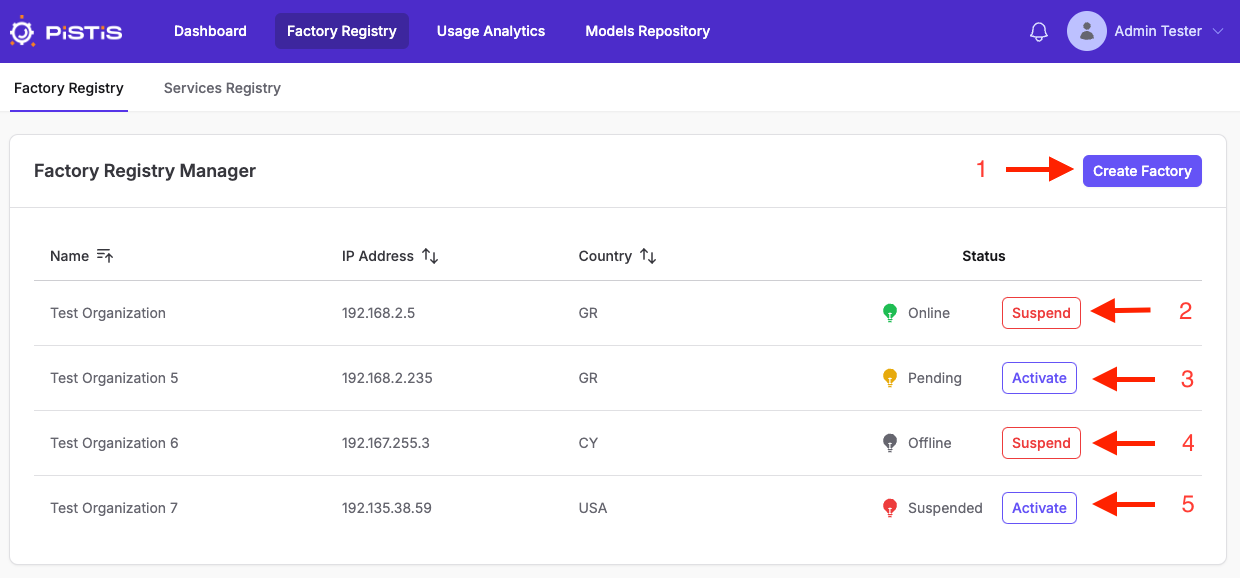
- Click the "Create Factory" button to create a new factory.
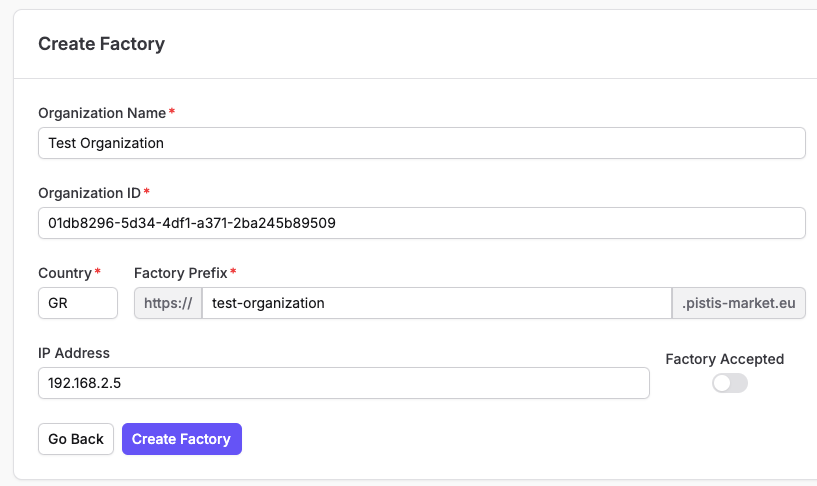
Here you can create a new factory by filling all the required details and toggling the "Factory Accepted" switch on if you're already certain the factory has been accepted beforehand. - If the factory is Online, you can click the button next to it to suspend it.
- If the factory is Pending, you can click the button next to it to activate it.
- If the factory is Offline, you can click the button next to it to suspend it.
- If the factory is Suspended, you can click the button next to it to activate it.
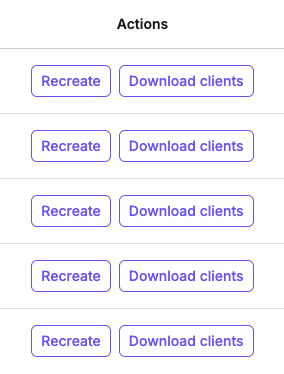
Next to the Status of each Factory is also an Actions column, where you can Recreate the factory or Download the clients.
Services Registry
In this tab you can register a new service, as well as search for and edit/update an existing service.
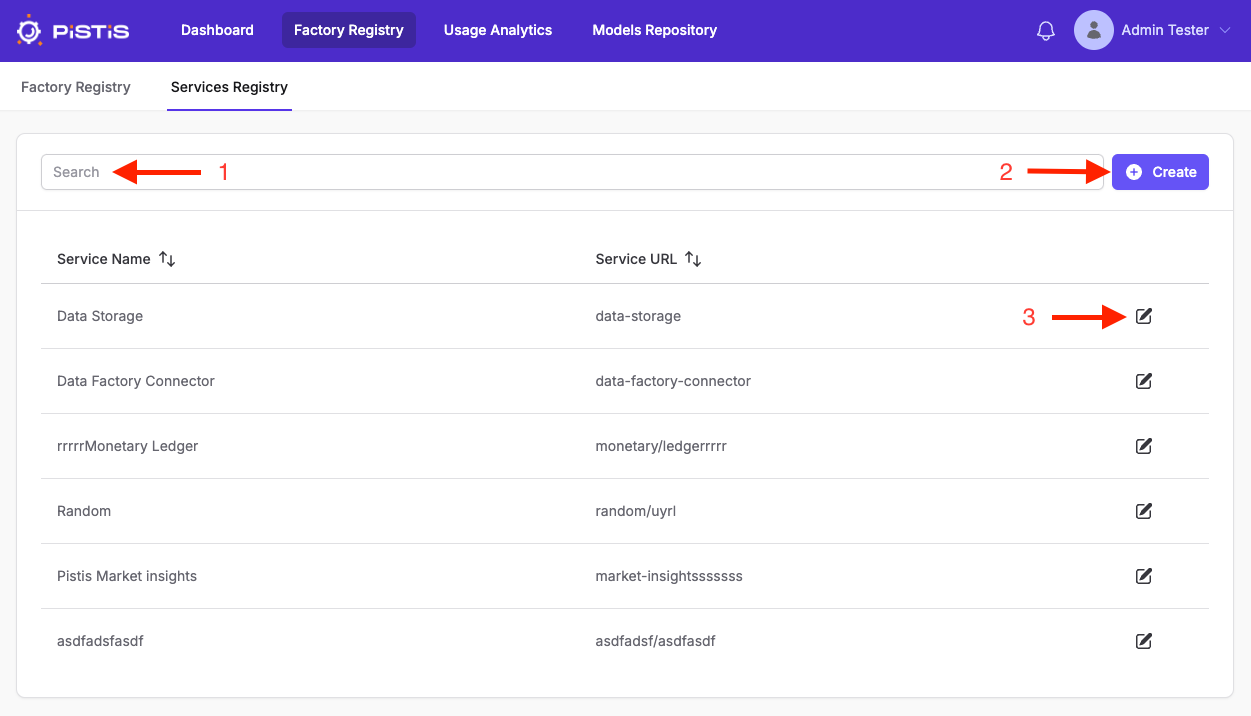
- Click in the search bar to search for an existing service.
- Click the "Create" button to create/register a new service.
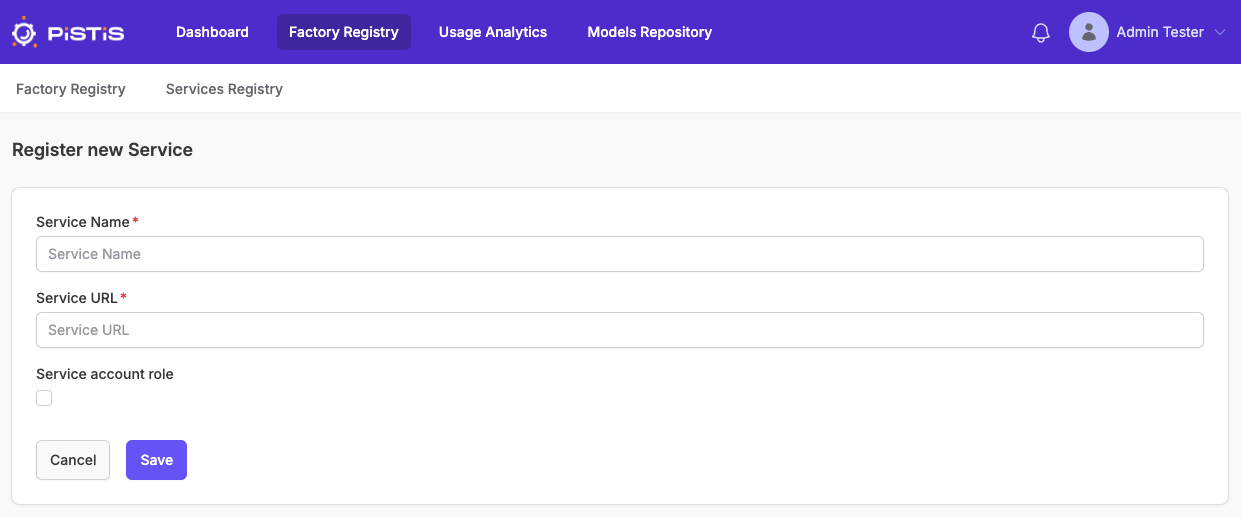
Here you can set the service name and URL, as well as whether it will have an account role using the checkbox. - Click the pencil icon next to each service to edit/update it.
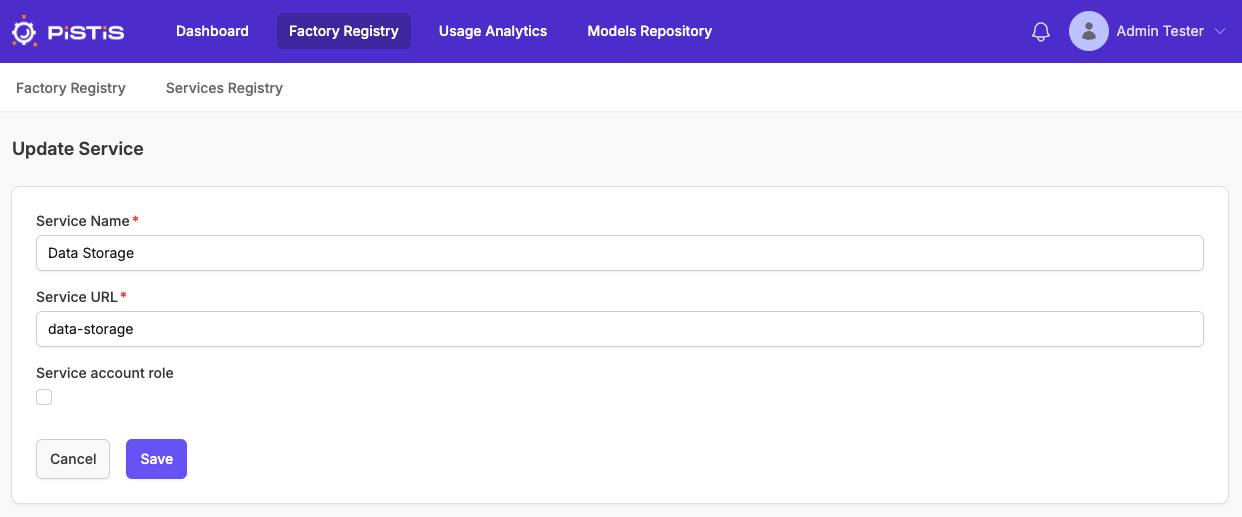
Here you can edit/update the service name and URL, as well as whether it will have an account role using the checkbox.
Table of Contents