
Managing Data within a Data Factory
Once the data is ingested in the PISTIS platform and is available in the Factory Catalogue, the user is able to enrich the data, anonymise it and assess its quality. These services are described below
Enriching Your Data Asset
Data Enrichment service is a PISTIS Factory component that is responsible for allowing a user to map columns of a raw dataset with properties from the PISTIS Data Model. It has a UI that shows the user a raw dataset and corresponding properties in the PISTIS Data Model that the user can select. This service is available to the user from the dataset page in the Factory Catalogue UI. The details of how a user can utilize this service is provided below.
Select a dataset to enrich
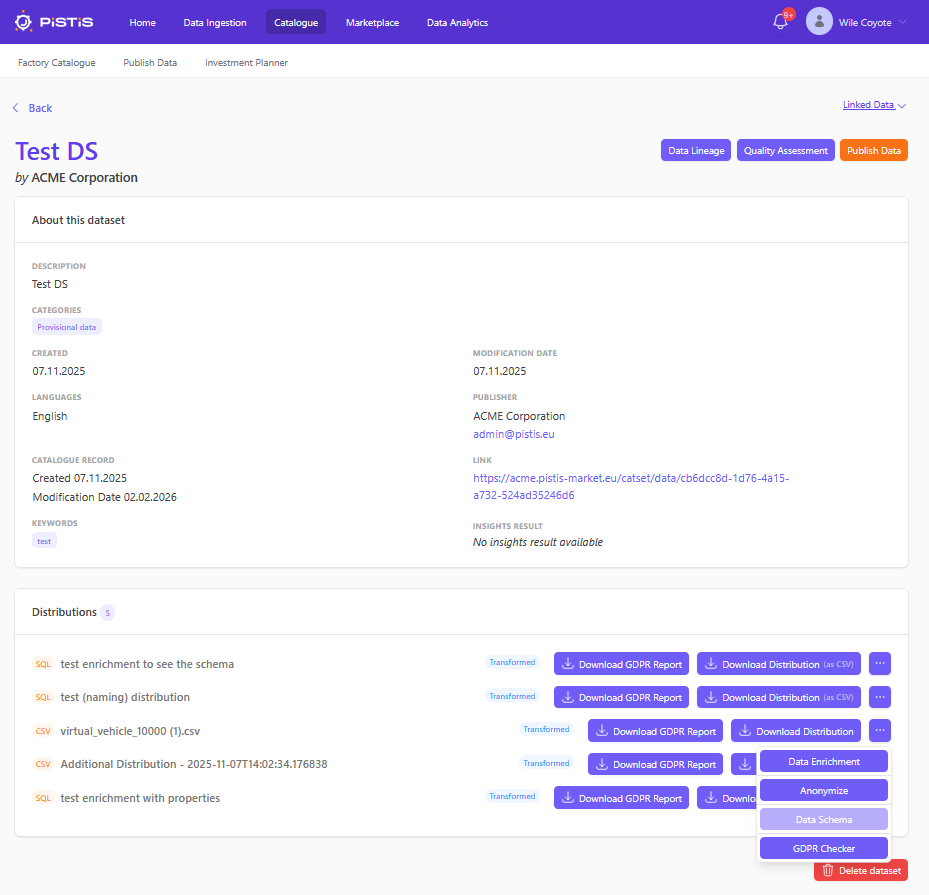
Once a user of the PISTIS Factory completes the Data Registration work flow, a dataset is created in the Factory Data Catalogue with some necessary metadata information. Distributions are representations of the actual dataset that are stored in the Factory Data Storage. Once a distribution is created, the button next to a distribution allows the data enrichment service to be triggered.This allows the user to semantically enrich this distribution with properties from the PISTIS Data Model.
Select the header
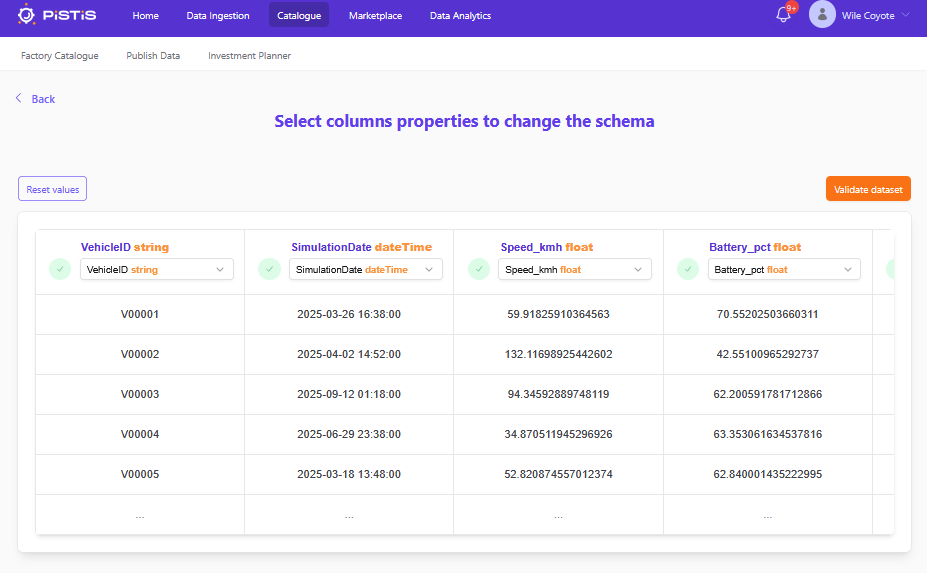
When the Data Enrichment button next to a distribution in the Catalogue UI is clicked, the enrichment service opens up and displays the first few rows of the dataset that was uploaded to the Factory Data Storage. At this point, the user can confirm that the raw dataset is as expected and select the header of the dataset to start the mapping. Click Yes or No and proceed to the following steps. This step confirms that the distribution that the user has selected contains the correct dataset that needs enrichment and it has the header that will be transformed. If there was a mistake, the user can click the Back button and chose to go back to the catalogue and select another distribution.
Select the properties
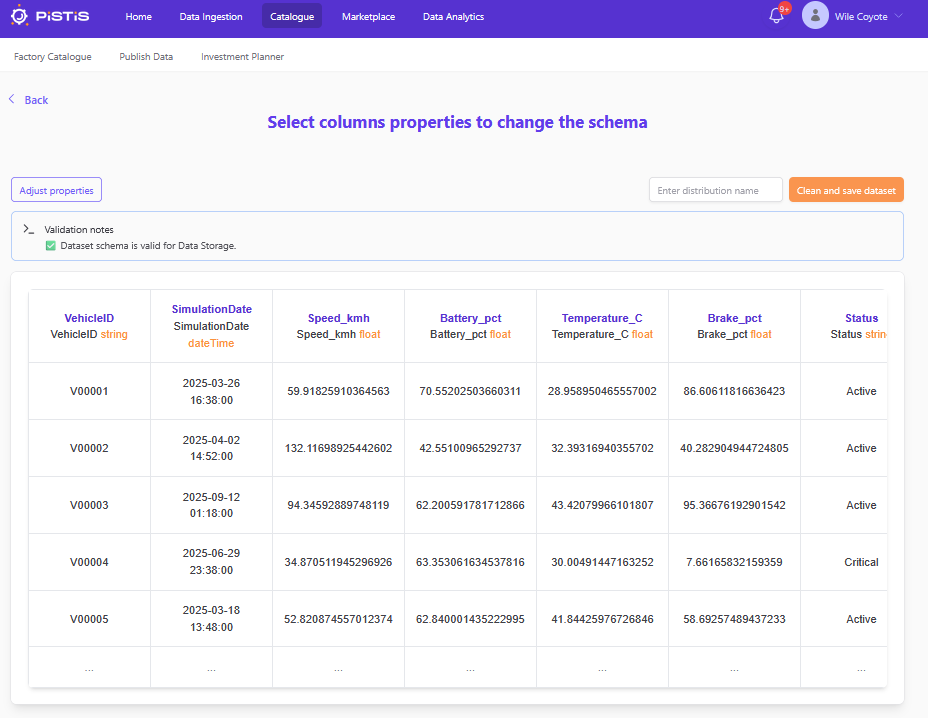
The next page displays the dataset with highlight on the selected header of the dataset and options to change each of the columns. If the header of the dataset already has properties from the data model, it will be auto selected in this view but the user still has an option to change it. The columns also have a validation check to make sure that the user does not select properties that have wrong datatypes compared to the datatype of the data in the table.
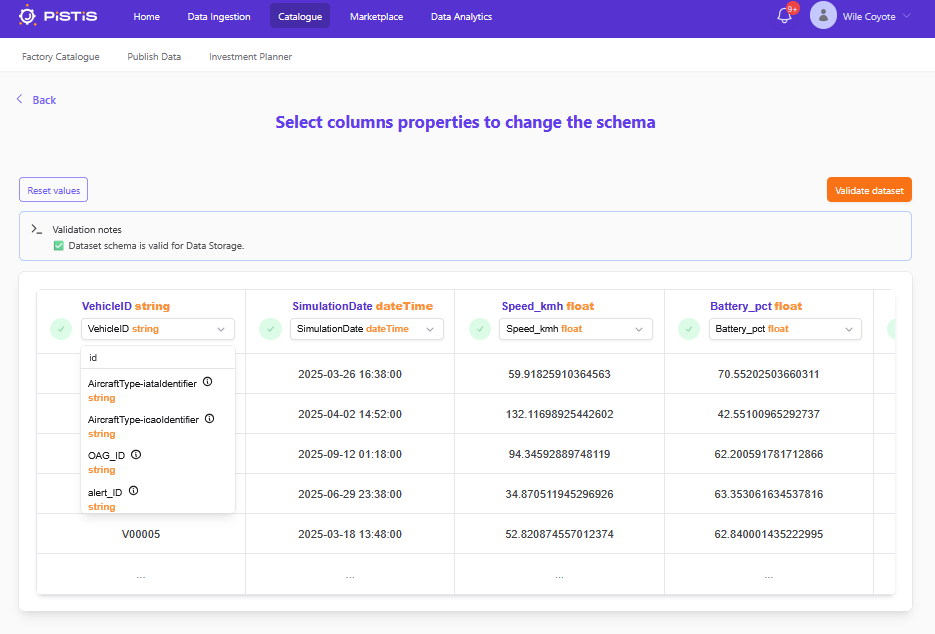
If the columns are selected, the user can now see the properties of the PISTIS Data Model in the drop down menu of each of the columns and choose suitable options from them. These values are coming from the PISTIS Data Model and it can be altered and updated to add and update the properties. There is also a live search option in each of the columns where the user can write expected the property names and it gets visible in the drop down menu. This helps the user to find the property without having to scroll a lot.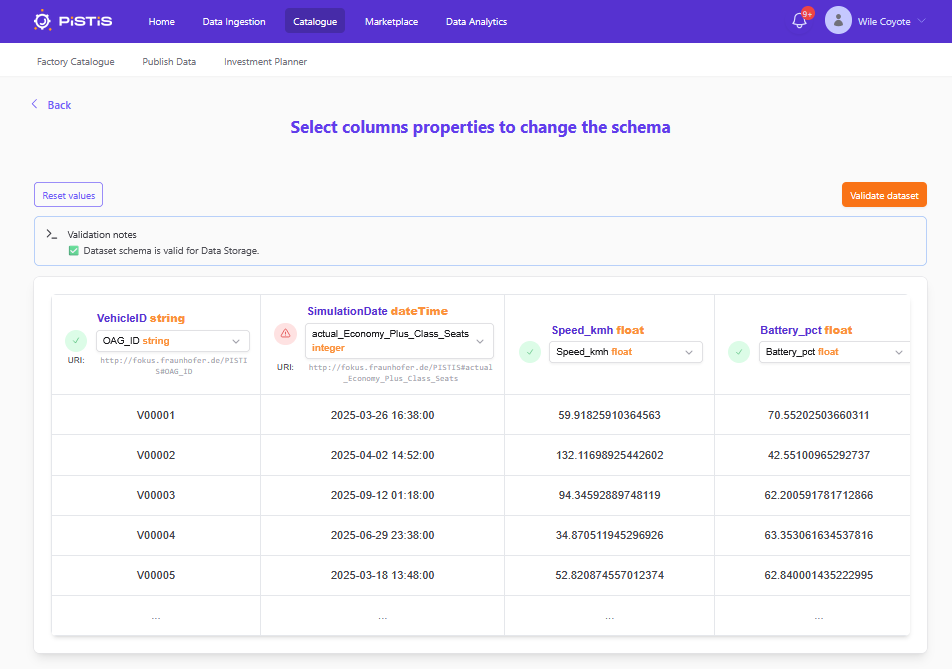
If the property selected by the user is a suitable property, with respect to the values in the rows, a green tick mark appears next to the columns, if not, it shows red. For example, if the dataset rows are String and the user selects a property that has a Float datatype, the green check mark next to the column will turn red and the process cannot cannot be completed with these values. The user is expected to select values so that all columns have a green tick mark.
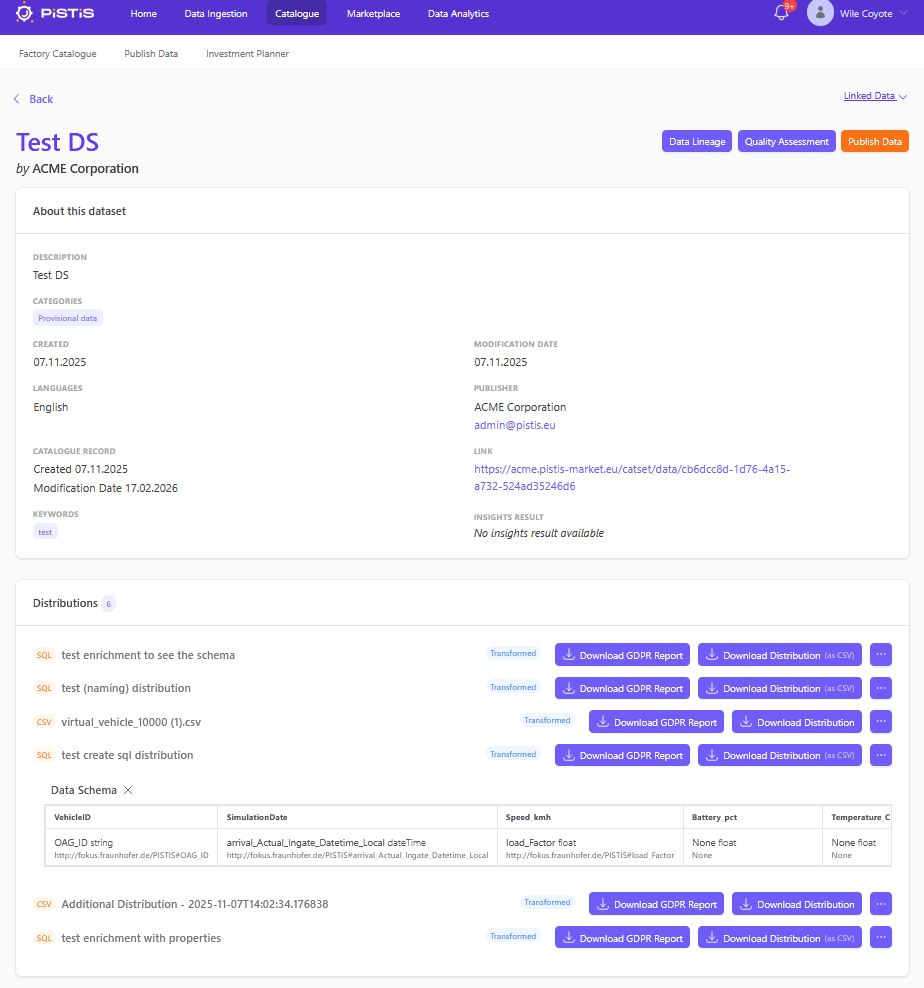
Save the dataset
If each of the column names are mapped correctly, then the Create button at the bottom of the page can be clicked and the dataset is saved to the Factory Data Storage and this will be represented as a new distribution in the Factory Data Catalogue.

Anonymising a Dataset
This is a guide to how to use the anonymiser component of the PISTIS Platform
Home Page
- Displays the first five rows of a dataset as a preview of the what the newly transformed dataset will look like
- "Apply Button" when clicked the transformed dataset stored in the anonymiser will be submitted to the factory data components to be saved and lineage will be created
- "Discard Changes" button will delete the dataset from the anonymiser and return the user to the pistis platform home page
- You can navigate to tools to obfuscate the dataset using the "Obfuscate Utilities" button or the "Obfuscation" link at the top of the page
- You can navigate to tools for applying kanonymity to the dataset using the "k-Anonymity" button or the "k-Anonymity" link at the top of the page
- This page also displays which columns were deemed sensitive by the anonymiser under "Sensitivity Report"
Data Obfuscation Page 1
- Shows a preview of what the dataset currently stored in the anonymiser looks like and some "Obfuscation Settings"
- Under the "Obfuscation Settings" you can configure how you would like the anonymiser to transform the dataset
- There are five different types of transformations that can be chosen in the obfuscation settings menu: faker, range, hash, location, delete
- faker will replace a column with believable values of a chosen category. You choose this category from a drop down menu in the column's settings.
- range will replace each number in the column with a range in which that number falls. You choose how big this range is from a drop down menu in the column's settings.
- hash will replace a value with a syntax preserving hash
- location will replace a latitude and longitude column with generated values that preserve statistical properties
- delete will delete the column
- click the "Preview Transformation" to preview the effect that this will have on the dataset
Data Obfuscation Page 2
- The transformation preview of the obfuscation page is only shown once the "Preview Transformation" button is clicked.
- click the "Apply Transformation" if you are happy with the transformation to save the changes to the instance of the dataset stored in the anonymiser (not to the factory data store)
K-Anonymity Page 1
- kanonymity page for the anonymiser
- Shows a preview of the dataset currently store in the anonymiser and some "Sensitivity Settings"
- "Sensitivity Settings" shows the sensitivity of each column as determined by the anonymiser
- Click the "See Solutions'' button to generate a list of potential configurations (known as solutions) that can be applied to the dataset to render it anonymous
K-Anonymity Page 2
- shows the solutions menu of the kanonymity page for the anonymiser. This only appears once "See Solutions'' is clicked.
- Under "Solutions'' you will see a list of solutions
- In the solutions table each row shows a single solution and details the effect the solution will have on the dataset as well as the estimated information loss that the application of this solution will result in
- Click the "Preview" button next to a to preview the effect a solution will have on the dataset
K-Anonymity Page 3
- Shows the preview of the transformed dataset of the kanonymity page for the anonymiser. This only appears once "Preview'' is clicked.
- Under "Preview" you will see a preview of the effect the solution had
- If you are happy with the result of the anonymisation then click the "Anonymize Dataset" button to save the changes to the instance of the dataset stored in the anonymiser (not to the factory data store)
Tracking the Lineage of your Dataset
The Lineage Tracker is a service responsible of tracking changes made to a dataset along with storing a reference to the variations of a dataset. It records actions such as dataset creation, updates, and GDPR checks and provides informations such as who performed these actions and when. This service is available to the user from the Factory Data Catalogue.
Select a dataset
Once the user has a dataset in the Factory Data Catalogue and has also made some updates to the dataset, using either the Data Tranformation or Data Enrichment tools, these changes and updates can be visualized using the Lineage Tracker button in the Catalogue UI of a dataset.
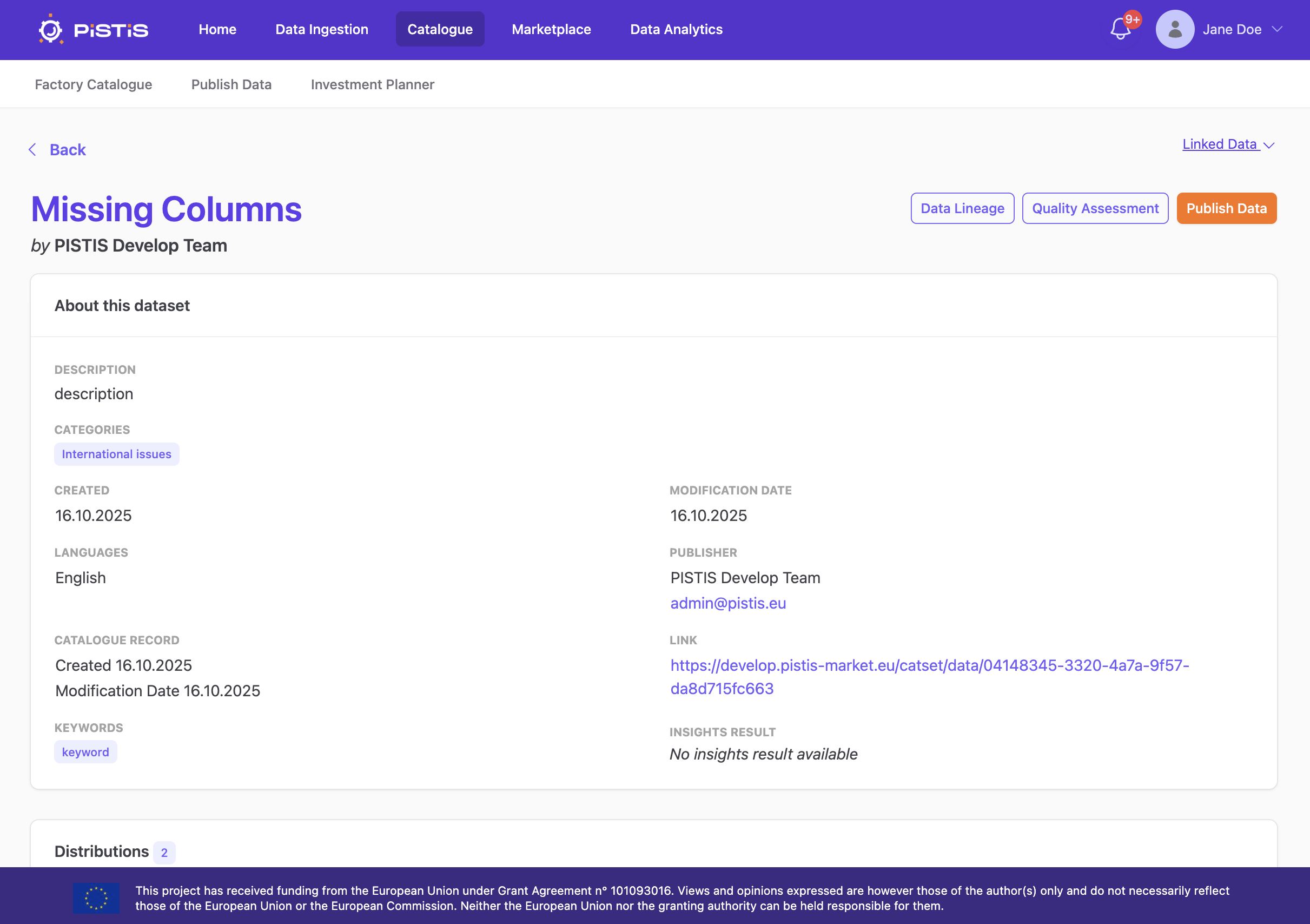
View the Lineage
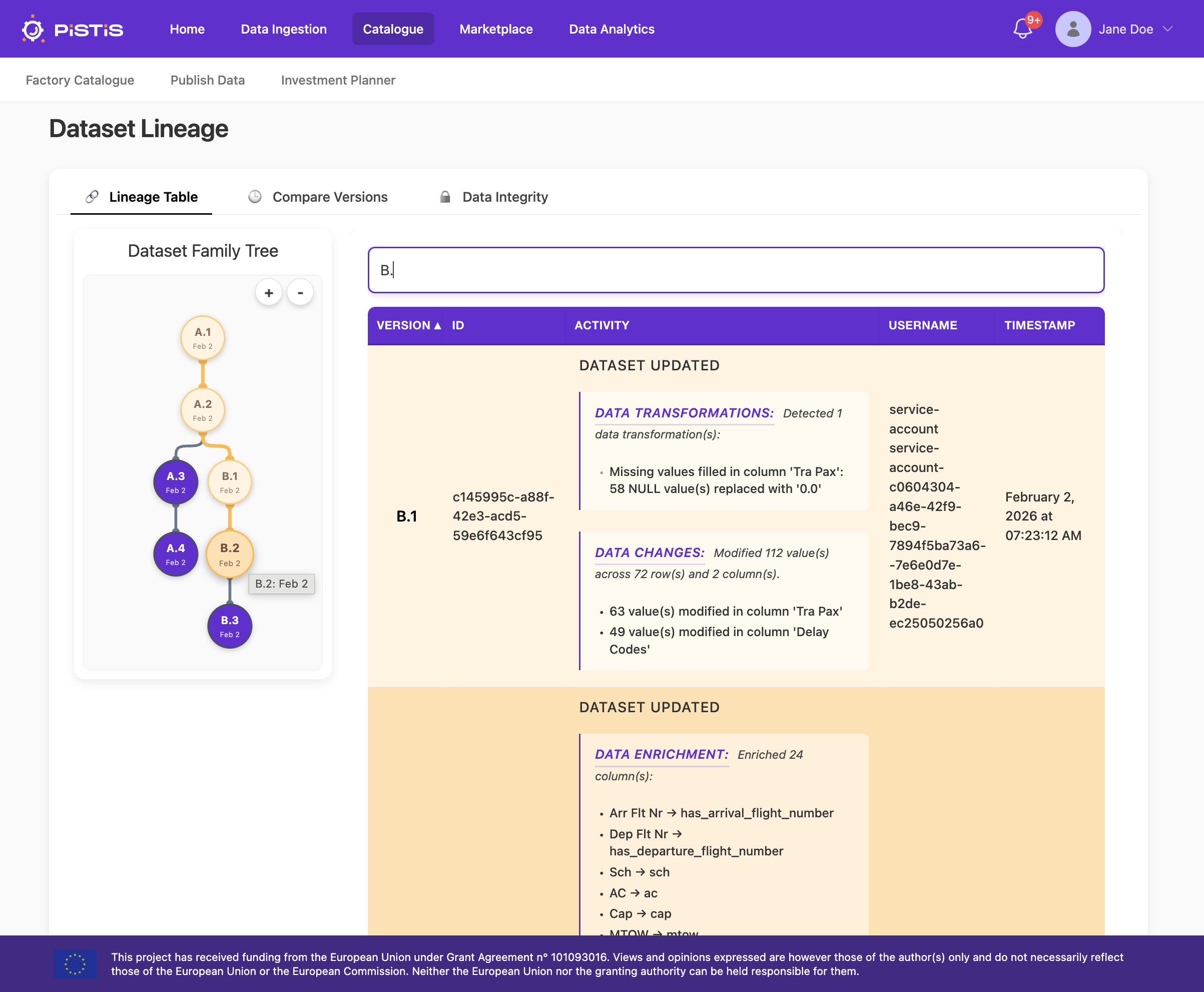
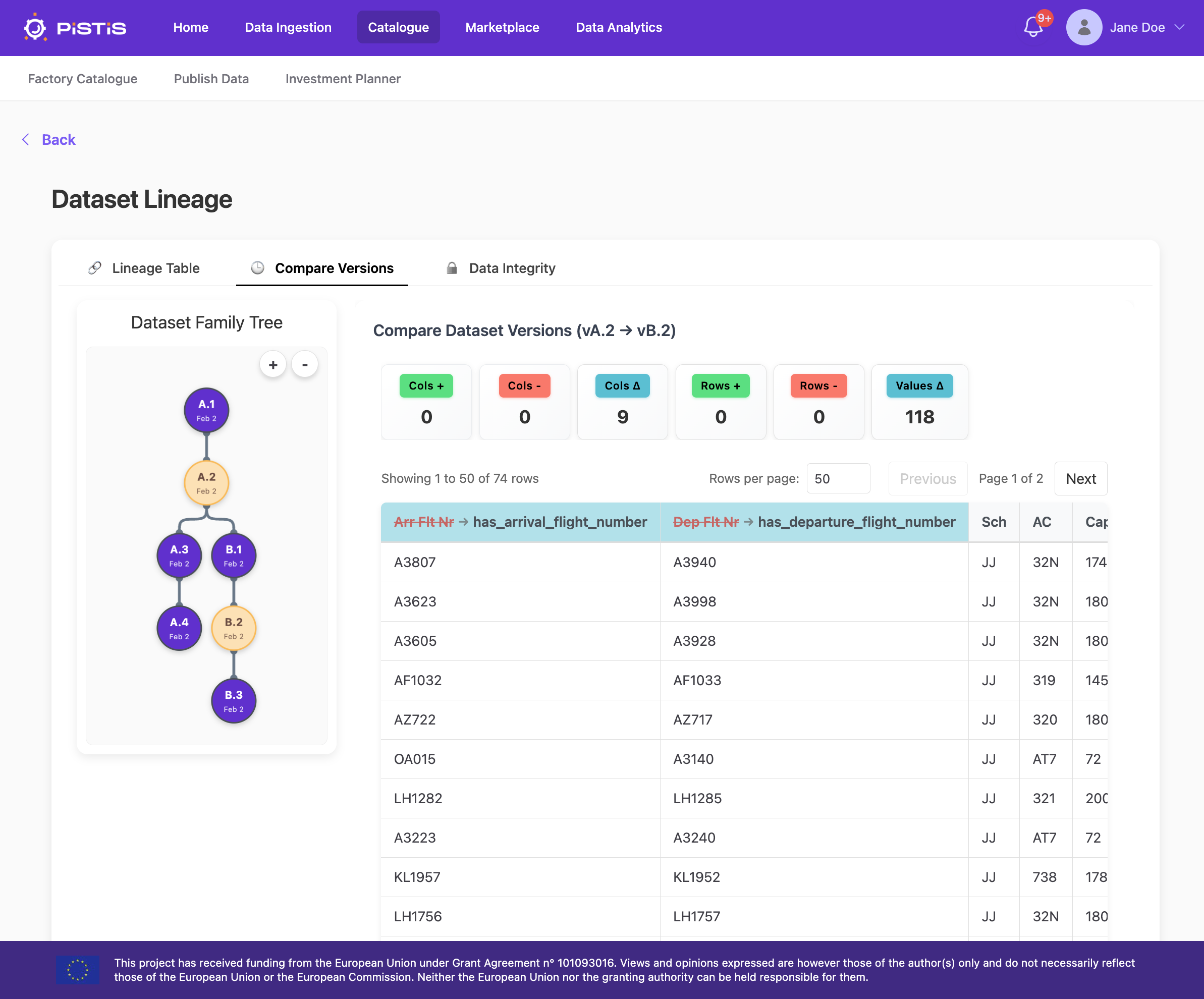
If the user clicks on the Data Lineage button, it opens up the Lineage Tracker service that shows the family tree of the dataset along with information on the opertions performed on the dataset. On the left side is a tree like structure that has nodes to represent each of the variations of the datasets. These nodes are represented as versions of the dataset. The table on the right side records further information about the changes made to this dataset. It shows how many versions this dataset has, which user created these versions, what actions created these versions and the timestamp of when these actions were performed.
View the Dataset Diff
The Lineage Tracker also allows the user to view the differences between two versions of a dataset by clicking on two dataset nodes in the family tree. Once the two nodes are selected the right side of the Family tree changes to display the differences between the two dataset versions in the form of a table. The user can also view a summary of any schema and data changes between the two datasets.
View the Lineage Data Integrity
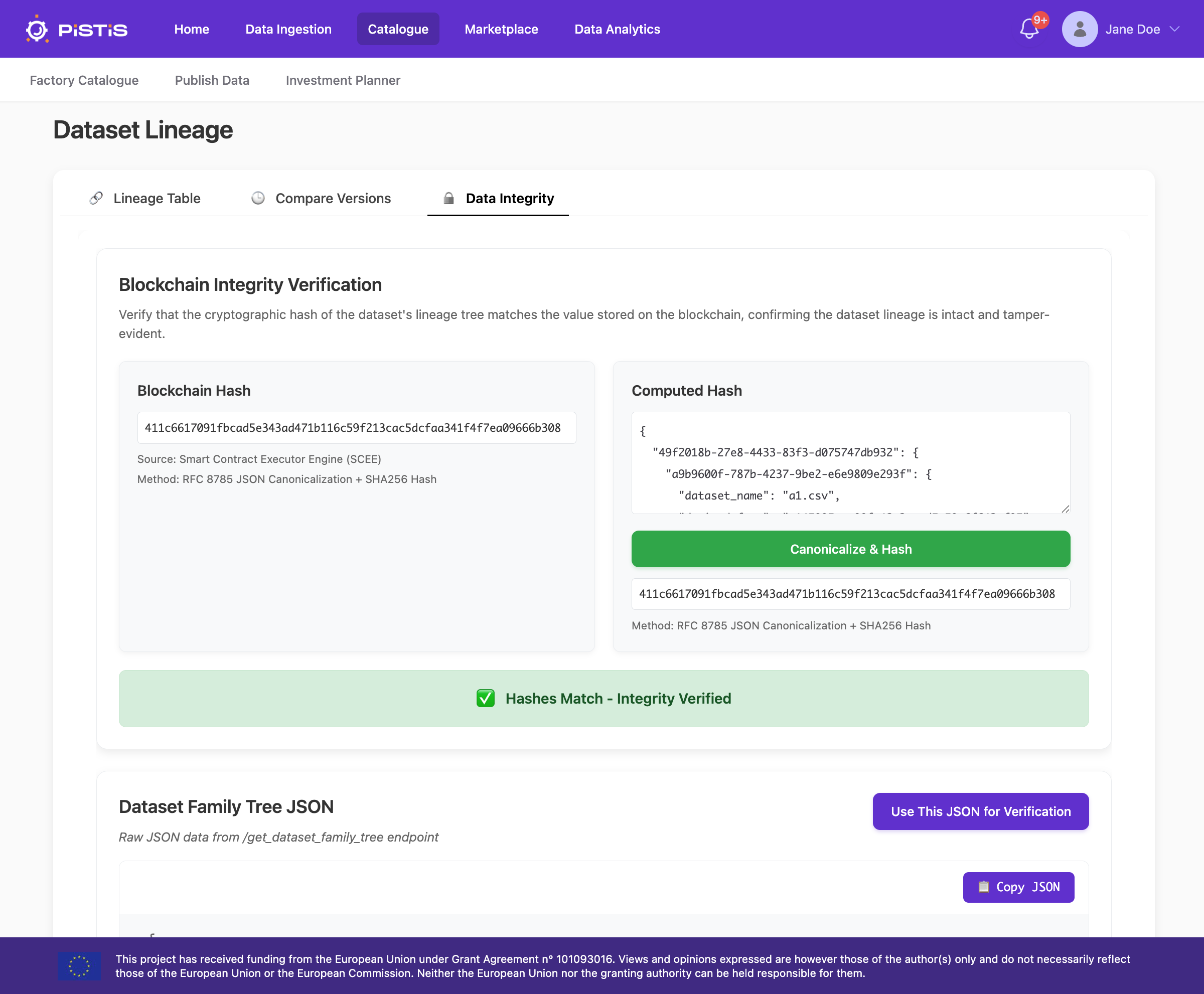
Lastly, the Lineage Tracker allows the user to view the data integrity of the displayed lineage information by clicking on the Data Integrity tab. This displays a cryptographic hash of the dataset lineage information stored on the Smart Contract Execution Engine (SCEE) blockchain component at the time the lineage information was created. The user can then copy the displayed lineage information, compute its hash, and compare it to the hash stored on the SCEE. If the hashes match, it proves that the lineage information has not been tampered with.
Assessing the Quality of Your Dataset
Metadata Quality Assessment
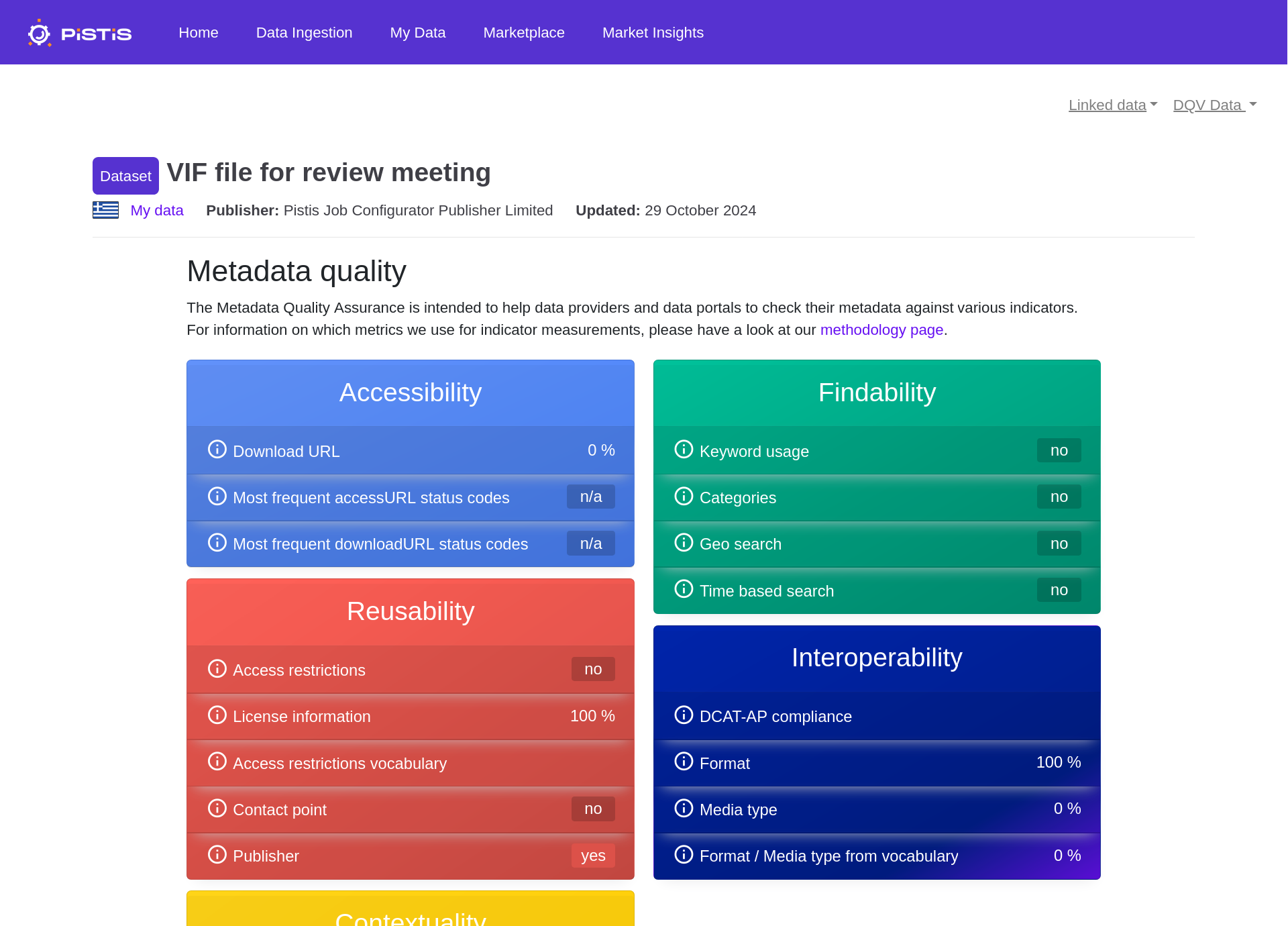
Clicking on the Quality Assessment button on the dataset details page leads to an overview of the metadata quality of
that dataset. The metrics software stack allows analysis of metadata with regards to the DCAT Application Profile for data portals in Europe (DCAT-AP) standard, which is based on the Data Catalog Vocabulary (DCAT) developed by the W3C. It is ".. a specification for metadata records to meet the specific application needs of data portals in Europe while providing semantic interoperability with other applications on the basis of reuse of established controlled vocabularies (e.g. EuroVoc) and mappings to existing metadata vocabularies (e.g. Dublin Core, SDMX, INSPIRE metadata, etc.)."
Multiple components analyse incoming metadata and derive measurements based on the Data Quality Vocabulary (DQV). These services are pipe modules and can therefore be orchestrated as a pipe.
In order to determine metadata quality the following five aspects are considered:
- Compliance with DCAT-AP and DCAT-AP derivatives
- Disclosure of information not mandated by DCAT-AP
- Accessibility of the data referenced in the metadata through the Access and Download URL
- Machine readability of the referenced data
- License usage
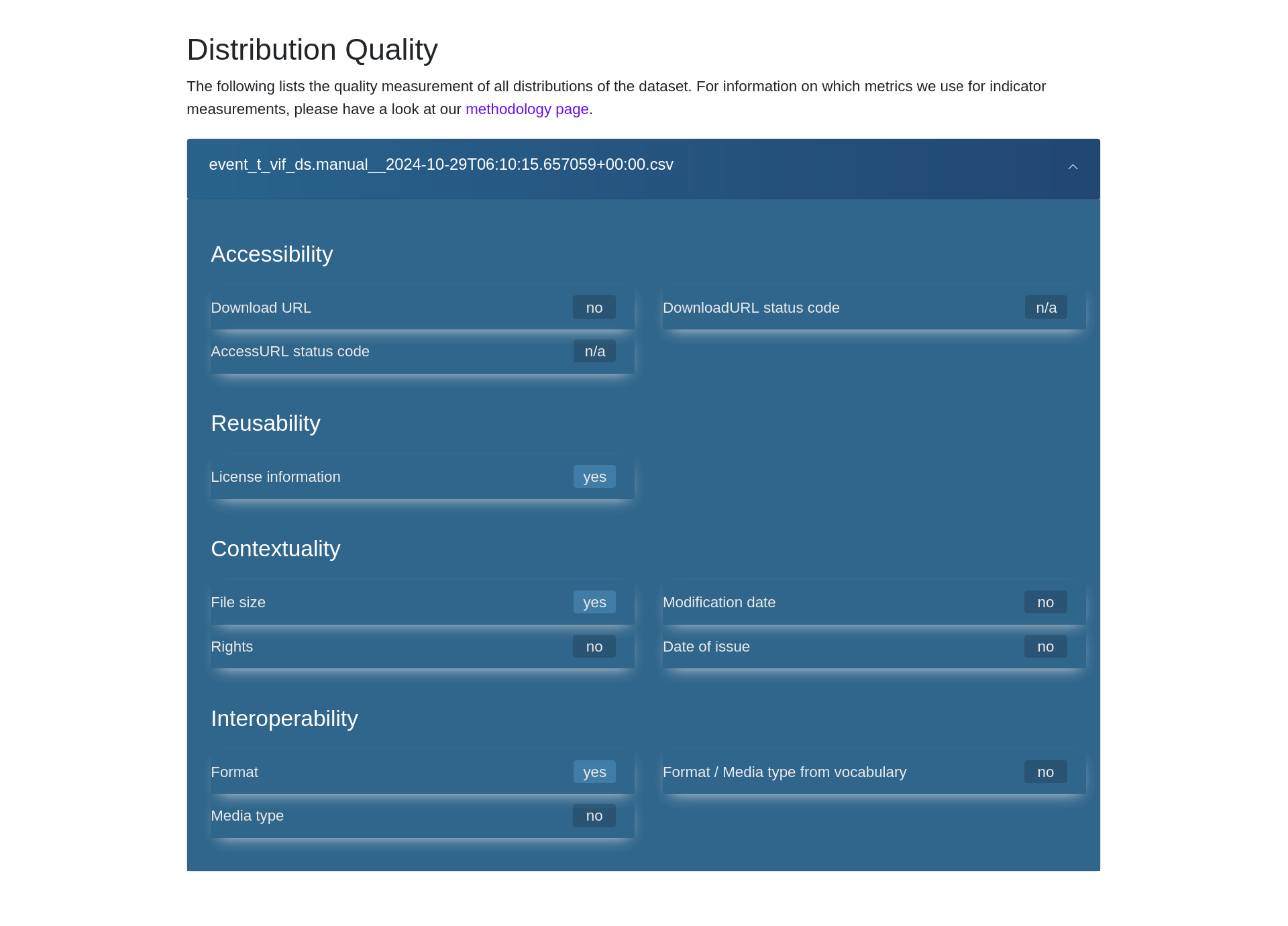
Based on these analyses a score can be calculated, which serves as an easily comparable indicator of overall metadata quality. The individual measurements as well as the final score can be visualized via web frontend.
Dataset Content Quality Assessment
If the dataset has undergone the Data Enrichment process, a preliminary quality assessment will be available. This quality assessment uses the rule-based Great Expectations framework, with the preliminary rules being inferred based on the Data Enrichment results. Optionally, the data owner may suppliment these inferred rules with quality rules based on expert knowledge. The UI for this process is currently under development.
Each rules of a data quality assessment is mapped to one of six Data Quality Dimensions:
- Accuracy, with respect to the domains of expected feature values
- Consistency, which checks feature constrains and inter-feature relationships
- Credibility, which identifies unexpected default values
- Completeness, regarding missing and null values
- Uniqueness, which identifies duplicate date
- Validity, which checks structure and data types