
EUDI Wallet Integration
The PISTIS platform supports authentication and credential issuance via the Talao EUDI Wallet, a standards-compliant EU Digital Identity Wallet. This guide describes the end-to-end process for a user to:
- Receive a PISTIS Verifiable Credential (VC) in their Talao wallet
- Use that credential to log in to the PISTIS platform
Prerequisites
Before starting, make sure you have:
- A PISTIS platform account (username and password)
- The Talao wallet installed on your smartphone
- At least one demo credential stored in your Talao wallet (e.g. Over18, EmailPass, or any other Talao demo credential). You can get one from the Talao demo issuer inside the wallet.
Step 1 — Navigate to the Credential Issuance Page
Open your browser and go to:
https://auth.pistis-market.eu/get-credential
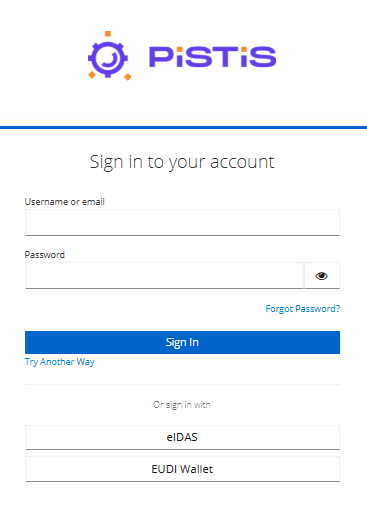
You will be redirected to the PISTIS login page.
Step 2 — Log in with your PISTIS Account
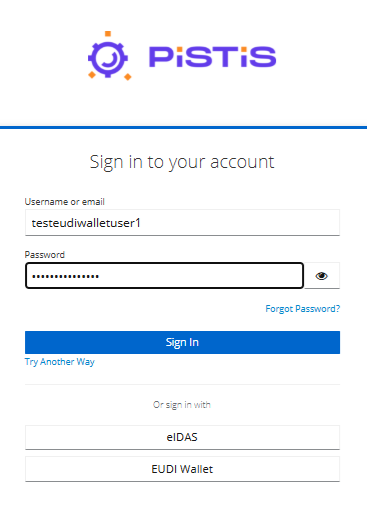
Enter your PISTIS username and password and click Sign In.
Step 3 — Register your Talao Wallet
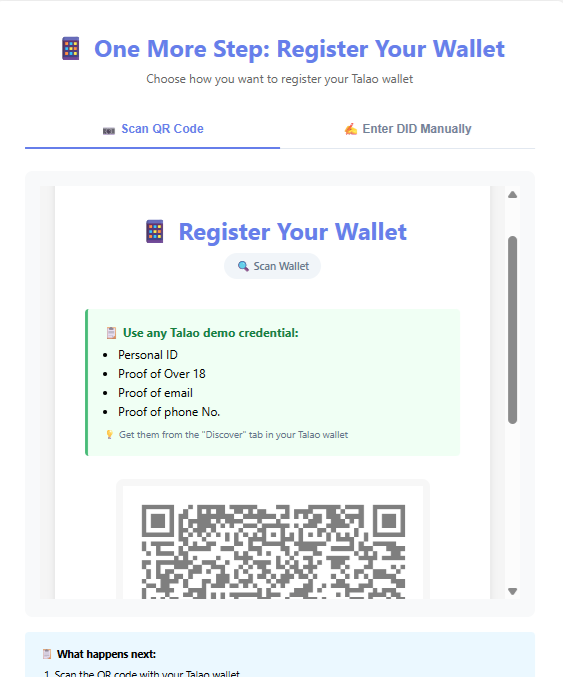
After logging in, if you have not yet registered your wallet, you will see the Register your Wallet page with two options:
- Scan QR Code — recommended, use your Talao wallet to scan the QR code
- Enter DID Manually — follow the instructions in the tab to find and enter your wallet DID manually
3a — Scan the QR Code with Talao
Open your Talao wallet on your smartphone and tap the QR code scanner icon. Point it at the QR code displayed on the page.
3b — Select a Demo Credential to Present
Talao will ask you to select a credential to present for wallet registration. Select any available demo credential (e.g. Over18, EmailPass) from the list shown.
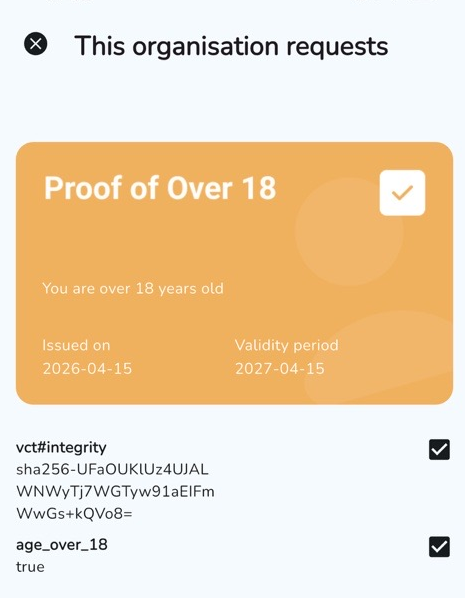
Only SD-JWT demo credentials are shown. OpenBadge credentials are excluded from this step.
3c — Confirm the Presentation
Tap Share or Confirm in Talao to present the credential. Your wallet DID will be automatically registered with your PISTIS account.
Step 4 — Receive your PISTIS Credential
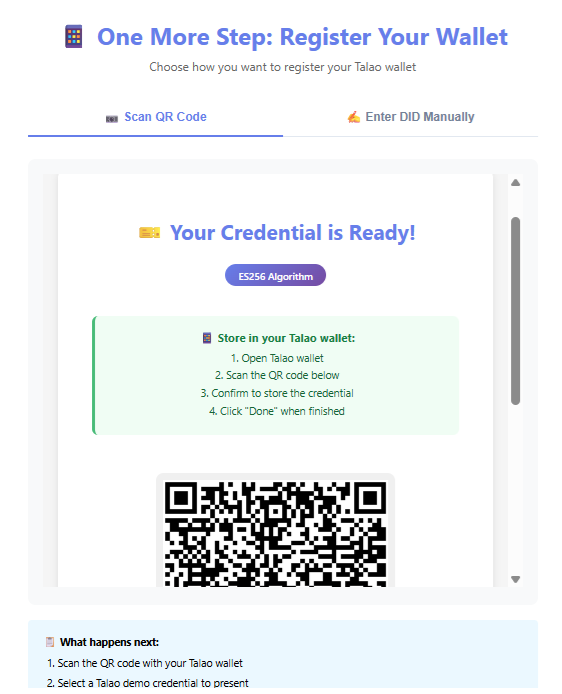
After successful wallet registration, click the Get Credential button to proceed to the credential issuance page, which displays a QR code.
4a — Scan the QR Code with Talao
Open your Talao wallet and scan the QR code displayed on the page.
4b — Store the Credential
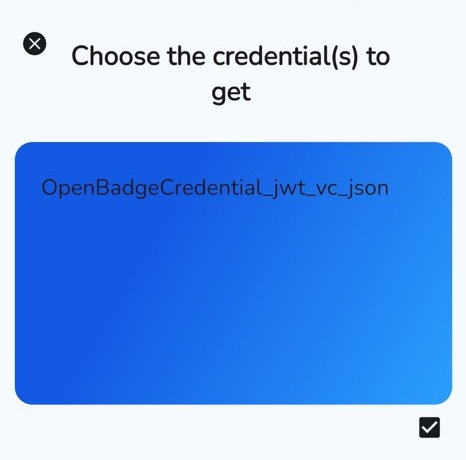
Talao will ask you to confirm storing the PISTIS OpenBadge Credential in your wallet. Tap Continue and Display in the screens shown to store it.
4c — Confirm
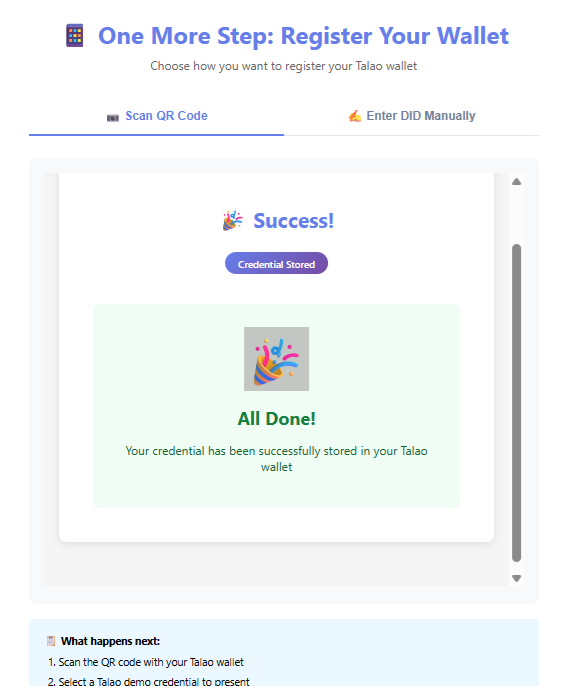
Once the credential is stored, click the Done - Credential Stored button on the page.
Step 5 — Log in to PISTIS with your Talao Wallet
You can now use your Talao wallet to log in to the PISTIS platform.
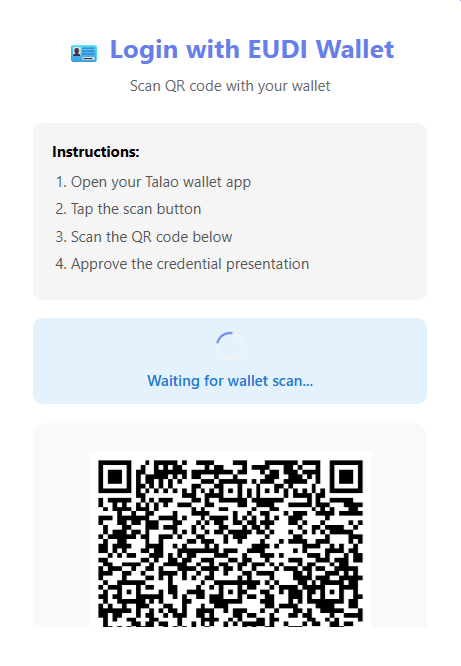
Navigate to the PISTIS platform, click Sign In, and then select EUDI Wallet.
A QR code will be displayed. Open your Talao wallet, scan the QR code, and present your PISTIS OpenBadge Credential.
The first time you log in with your Talao wallet, Keycloak will ask you to link the wallet identity to your existing PISTIS account. Select Add to existing account to proceed.
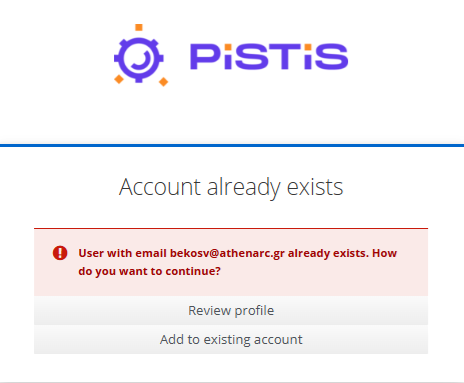
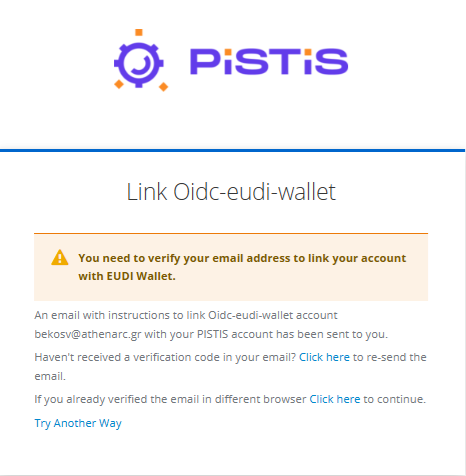
In the next screen, click Try Another Way to select a different verification method.
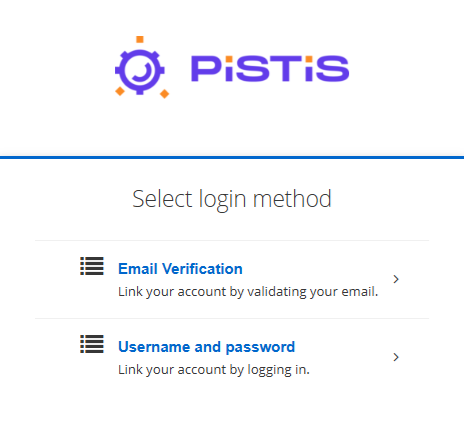
Select Username and password as the login method to verify your identity.
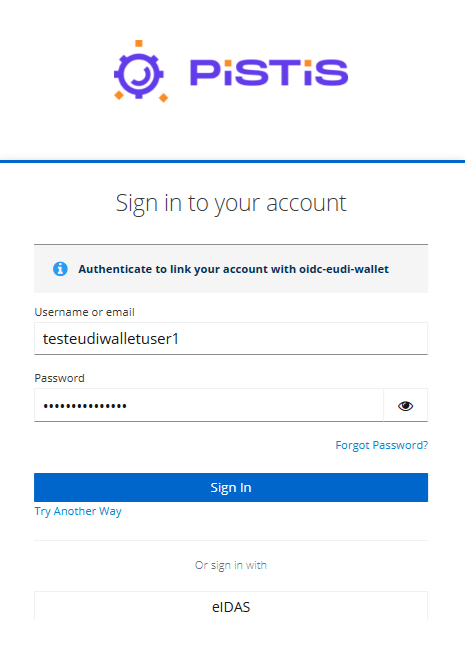
Enter your PISTIS credentials in the Sign in to your account form to complete the account linking.
After confirming, you will be logged in to the PISTIS platform using your EUDI wallet. From this point on, you can log in by selecting EUDI Wallet and scanning the QR code with Talao — no password required.
Resetting your Wallet Registration
If you need to register a new wallet (e.g. you changed your phone), you can reset your wallet registration at:
https://auth.pistis-market.eu/waltid/issuer/reset-wallet
Log in with your PISTIS credentials and follow the instructions to clear your current wallet registration and register a new one.
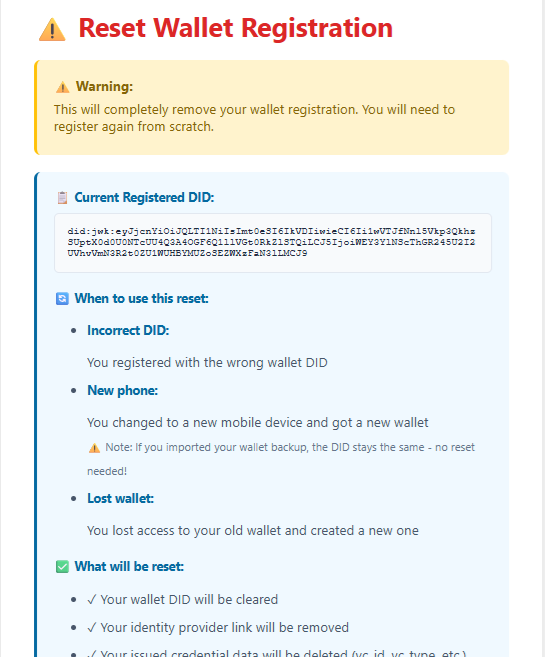
Resetting your wallet registration will delete your current wallet DID and issued credential data. You will need to go through the full registration and credential issuance process again.